
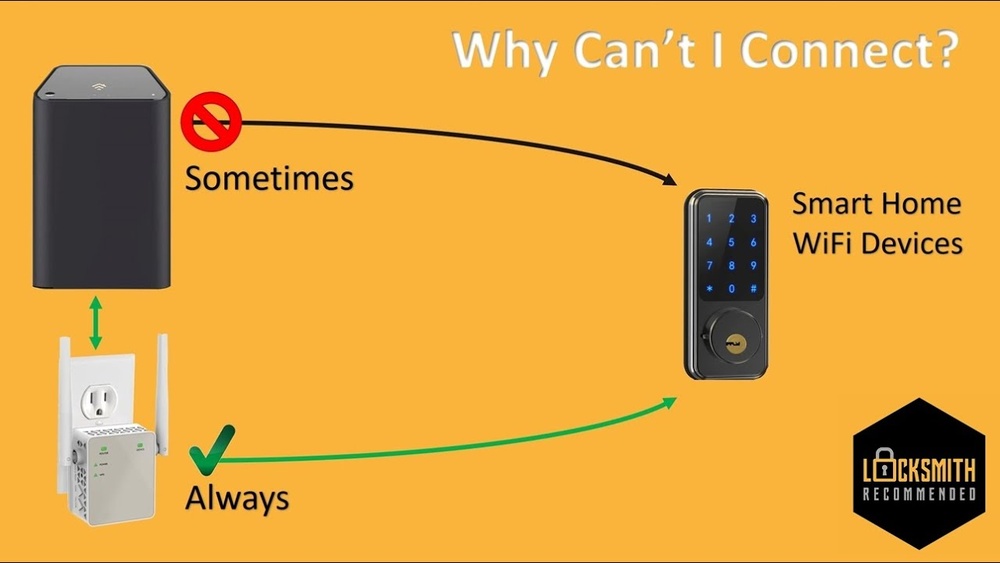
Smart home devices are very useful. They can make your home safer and more comfortable. But to work well, these devices need to connect to WiFi. This means they need to join your home internet. If you do not know how to do this, don’t worry. This guide will help you connect your smart devices to WiFi easily.
What Are Smart Home Devices?
Smart home devices are gadgets that connect to the internet. They can be controlled from your phone, tablet, or computer. Some common smart devices are:
- Smart lights
- Smart speakers
- Smart plugs
- Smart cameras
- Smart thermostats
These devices need WiFi to work. Without WiFi, you cannot control them remotely. So, connecting them to your WiFi is very important.
What You Need Before Connecting
Before you start, make sure you have these things ready:
- A working WiFi network at home
- The WiFi name (SSID) and password
- The smart device you want to connect
- A smartphone or tablet with the device’s app
Most smart devices need an app to set them up. You can find this app in the App Store or Google Play.
Step 1: Turn On Your Smart Device
First, plug in your smart device or insert batteries if needed. Then, turn it on. Some devices have a button to power on. Others start automatically when plugged in.
When the device is on, it may flash a light or make a sound. This means it is ready to connect.
Step 2: Download the Device App
Next, get the app for your smart device on your phone or tablet. Search the app store for the device’s name. For example, if you have a smart bulb from “Bright Light,” look for “Bright Light app.”
Download and open the app. You may need to create an account with your email. This helps save your device settings.
Step 3: Open the App and Start Setup
Once the app is open, look for a button that says “Add Device” or “Setup.” Tap it. The app will ask you to choose your device from a list.
Select your device. The app will guide you through the steps. It may ask you to connect your phone to the device’s temporary WiFi. This is normal. It helps the device get your home WiFi info.
Step 4: Connect to Your Home WiFi
The app will ask for your WiFi name (SSID) and password. Type them carefully. This lets the smart device join your home network.
Make sure your phone is connected to the same WiFi network you want the device to use. This makes setup smoother.
Step 5: Wait for Connection
After entering your WiFi info, the app will try to connect the device. This can take a few seconds to a minute.
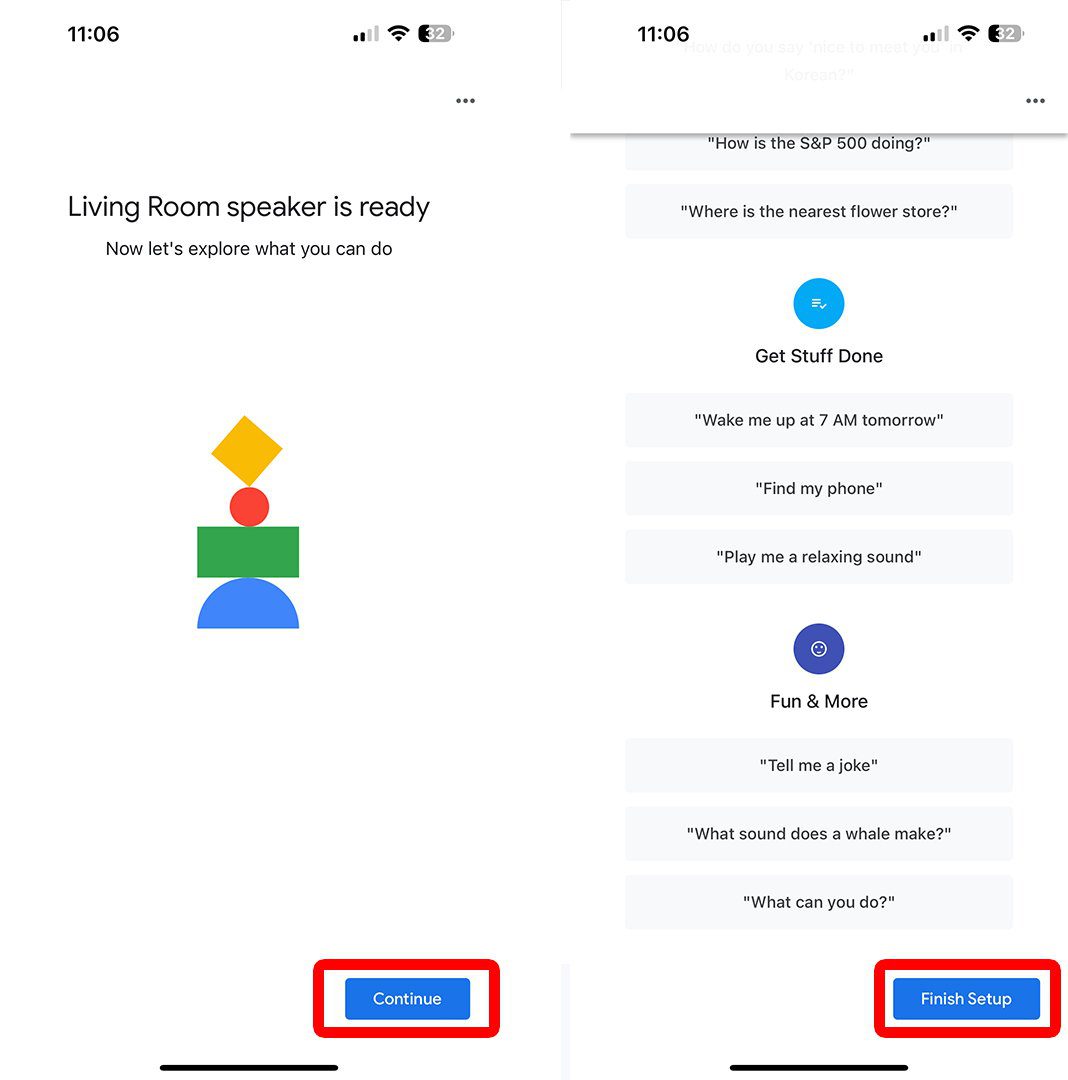
If the connection is successful, the device’s light may stop blinking or change color. The app will show a message that says “Connected” or “Setup Complete.”
If it does not connect, check your WiFi name and password. Try again. Sometimes, restarting the device helps.

Credit: www.youtube.com
Step 6: Name Your Device
Most apps let you give your device a name. You can call it “Living Room Light” or “Front Door Camera.” This helps you find the device in the app later.
Pick a name that is easy to remember.
Step 7: Test Your Device
Now, try using your device through the app. For example, turn the light on or off. See if it works.
If it works, you have successfully connected the device to WiFi. Congratulations!
Tips for Better Connection
Here are some tips to help you connect smart devices to WiFi easily:
- Use a strong WiFi signal near the device
- Keep your phone close to the device during setup
- Make sure your WiFi password is correct
- Use 2.4 GHz WiFi if your device does not support 5 GHz
- Restart your router if connection problems happen
Understanding WiFi Bands: 2.4 GHz and 5 GHz
Many smart devices only work with 2.4 GHz WiFi. This is because it has a longer range. But some newer devices support both 2.4 GHz and 5 GHz.
Check your device’s instructions to know which WiFi band it needs. If your router has two bands, connect the device to the right one.
What to Do If You Have Problems
Sometimes, connecting smart devices can be tricky. Here are steps to fix common problems:
- Check your WiFi password again
- Make sure your phone’s WiFi is on
- Move the device closer to your router
- Restart your router and device
- Reset the smart device to factory settings and try again
If you still have trouble, read the device manual or look for help online.
Why Connect Smart Devices to WiFi?
When smart devices connect to WiFi, you can:
- Control them from anywhere using your phone
- Set schedules to turn devices on or off
- Receive alerts and notifications
- Save energy by controlling devices better
WiFi makes smart devices more useful and fun to use.
Summary Table: Steps to Connect Smart Devices to WiFi
| Step | What to Do |
|---|---|
| 1 | Turn on your smart device |
| 2 | Download the device app on your phone |
| 3 | Open the app and start setup |
| 4 | Enter your WiFi name and password |
| 5 | Wait for the device to connect |
| 6 | Name your device in the app |
| 7 | Test the device to make sure it works |
Credit: www.icecreamfactoryny.com
Final Thoughts
Connecting smart home devices to WiFi is simple. Just follow the steps carefully. Take your time and check your WiFi info. Soon, you will control your home devices from your phone. This makes life easier and more fun. Enjoy your smart home!
Frequently Asked Questions
How Do I Connect Smart Home Devices To Wifi?
Most smart devices have a setup app. Open the app, select your WiFi, and enter the password. The device will connect automatically.
Why Won’t My Smart Device Connect To Wifi?
Check your WiFi password and signal strength first. Restart your router and device if it still won’t connect. Sometimes, devices need to be close to the router.
Can I Use 5ghz Wifi For Smart Home Devices?
Many smart devices work best on 2. 4GHz WiFi. The 5GHz band has shorter range and may cause connection issues. Check your device’s instructions to be sure.
Do Smart Home Devices Need A Strong Wifi Signal?
Yes, a strong signal helps devices work smoothly. Weak signals can cause slow responses or disconnections. Place devices closer to the router if needed.