
Imagine it’s late at night and you’re finally settling in, only to see that dreaded “Device Offline” alert flash across your phone. You’ve spent hours perfecting your automation, yet you’re still stuck power-cycling your hub every morning just to keep the lights on. It’s incredibly frustrating when smart home devices losing connection turns your high-tech sanctuary into a source of daily chores. You aren’t alone in this struggle; with over 20 billion Wi-Fi devices competing for airwaves in 2026, even the fastest internet can’t always prevent a digital traffic jam.
You deserve a home that works for you, not the other way around. This guide shows you how to move past the “reboot and hope” method to build a truly frictionless environment. We’ll explore why upgrading to Matter 1.6 or utilizing the new sub-GHz range of Zigbee 4.0 can solve your range issues once and for all. You’ll learn how to balance Wi-Fi 7 with Thread 1.4 to ensure your security cameras stay online when they matter most. We’re going to walk through the expert fixes that will help you finally achieve a “set it and forget it” smart home.
Key Takeaways
- Identify why smart home devices losing connection often boils down to the “Device Ceiling,” where standard ISP routers struggle to manage more than 20 gadgets.
- Learn to distinguish between Wi-Fi, Zigbee, and Matter protocols to choose the most stable communication method for your specific home layout.
- Discover how to perform a simple “Signal Audit” to eliminate dead zones and ensure every sensor has a clear path to your hub.
- Understand why switching to a Mesh Wi-Fi system is the gold standard for maintaining a reliable, high-bandwidth automation network.
- Explore how Matter 1.6 and Thread technology create a self-healing network that removes the frustration of daily device reboots.
The Common Culprits: Why Smart Tech Goes Offline
To understand why your smart home devices losing connection is such a recurring headache, we first need to look at the chain of communication. A connection loss isn’t just “the internet being down.” It’s actually a breakdown in the conversation between your device, your smart home hub, and the cloud servers that process your commands. If any link in that chain snaps, your smart bulb won’t turn on. Most issues stem from how these devices juggle their place on your network, especially when they rely on external servers to perform basic tasks.
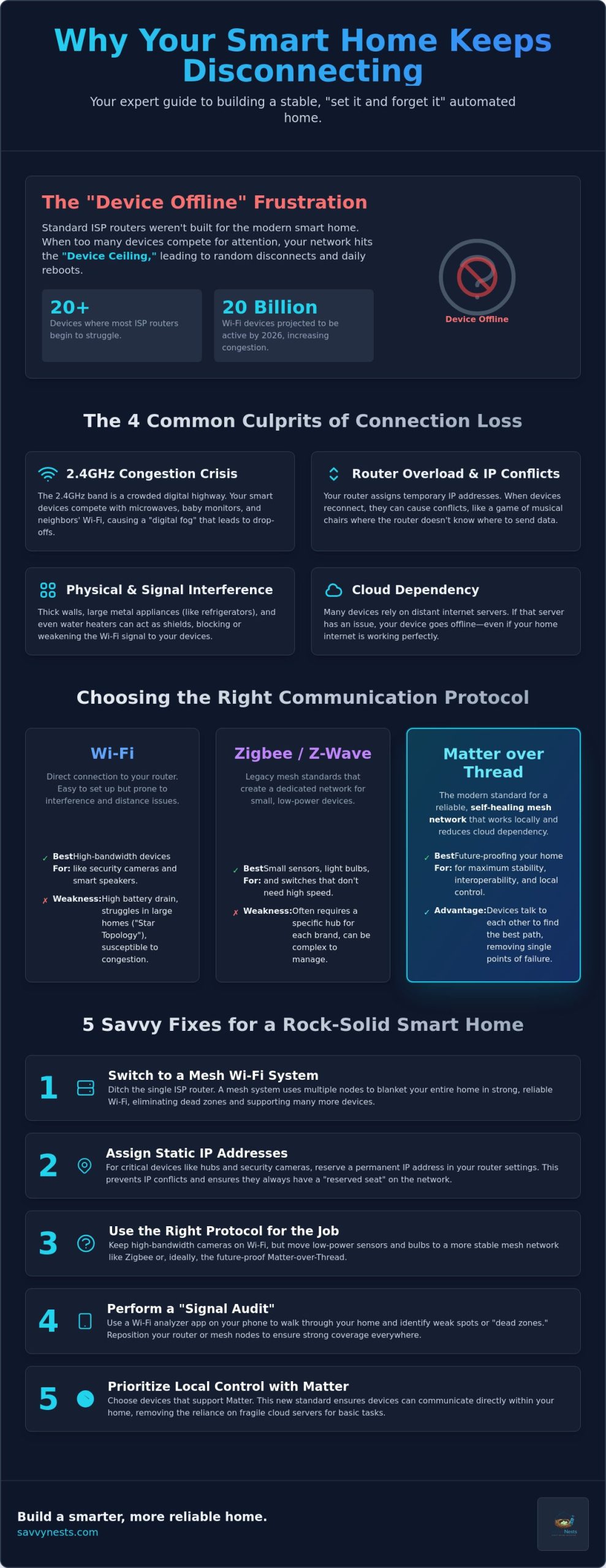
One of the most overlooked reasons for instability is the “Device Ceiling.” Most people rely on the basic router provided by their internet service provider (ISP). These units are designed to handle a few laptops and phones, not a house full of 50 smart plugs and sensors. Once you hit 20 or more connected devices, the router’s processor simply can’t keep up with the constant “heartbeat” checks every gadget performs. It starts dropping devices to make room for others, which is why your bedroom light might work perfectly one day and show up as “unresponsive” the next.
Physical and signal interference also play massive roles. While thick brick walls or large appliances like refrigerators act as physical shields, signal interference is often the silent killer. If you live in a dense neighborhood, your neighbor’s Wi-Fi is likely screaming on the same channels as yours. This creates a digital fog that makes it hard for small, low-power devices to be heard. Additionally, cloud-dependent devices are at the mercy of your ISP. Local-control devices talk directly to your hub, but cloud-based ones have to send a message to a server halfway across the world just to turn on a light three feet away. If the server has a hiccup, your device goes offline regardless of how fast your home internet is.
The 2.4GHz Congestion Crisis
Almost every basic smart gadget uses the 2.4GHz frequency because it has a longer range than the faster 5GHz band. The problem is that this space is incredibly crowded. Your microwave, baby monitor, and even old cordless phones all live here. Every time you pop popcorn, you might be temporarily knocking your smart lock offline. A savvy move to reduce this friction is to separate your IoT devices onto a guest network. This gives them their own lane on the digital highway, preventing them from competing with your high-bandwidth streaming or gaming sessions.
Router Overload and IP Conflicts
Your router uses a system called DHCP to hand out digital name tags, known as IP addresses. Think of it like “IP address musical chairs.” When a device goes to sleep and wakes up, it might find its old chair is gone, leading to an IP conflict where the router doesn’t know where to send information. While a quick restart is a common band-aid, it doesn’t solve the underlying issue. For critical hardware like your main hub or security cameras, setting a static IP address ensures they always have a reserved seat at the table. This local stability is a core goal of the Matter connectivity standard, which aims to make these connections much more reliable and less dependent on fragile cloud links.
Diagnosing Your Network: Wi-Fi vs. Zigbee vs. Matter
Diagnosing the root cause of connectivity issues requires looking at how your devices talk to each other. In 2026, we categorize these into three main pillars: Wi-Fi, legacy mesh standards like Zigbee and Z-Wave, and the modern Matter-over-Thread standard. Each has a specific job to do. Mixing them incorrectly or expecting a single router to handle everything is often why you see smart home devices losing connection at the most inconvenient times.
Wi-Fi is the default choice for many because it’s easy to set up and doesn’t always require a separate hub. However, it’s also the most fragile. Because Wi-Fi devices rely on a direct line to your router, any interference or distance can cause a drop. If you’re building a “Savvy Nest,” you’ll find that choosing the right protocol for the right task is the secret to a stable home. High-bandwidth gadgets like cameras belong on Wi-Fi, but small sensors usually don’t.
Why Wi-Fi Devices Struggle in Large Homes
Most Wi-Fi networks use what’s called a “Star Topology.” This means every single bulb, plug, and camera must be able to reach your central router directly. In a large home, a sensor in the garage might struggle to maintain that link through three or four walls. This distance doesn’t just cause disconnects; it also drains batteries. When a Wi-Fi sensor has a weak signal, it works overtime to stay connected, often dying in weeks rather than months. If you are just starting your journey, check out our smart home buying guide to help you select an ecosystem that prioritizes stability over simple setup.
The Stability of Zigbee and Z-Wave
Zigbee and Z-Wave were designed specifically to solve the Wi-Fi distance problem through a “mesh” architecture. Instead of every device talking to the router, they talk to each other. If a smart plug in the hallway is halfway between your hub and a bedroom sensor, it acts as a repeater. This creates a self-healing network. If one path is blocked, the signal simply hops to another device to reach its destination. This prevents a single failure from taking down your entire system.
Z-Wave has an extra advantage because it operates on a sub-GHz frequency, around 900 MHz in the US. This frequency travels through walls much better than the crowded 2.4GHz band used by Wi-Fi and older Zigbee devices. With the arrival of Zigbee 4.0 in 2026, we are seeing even better range and security across these mesh networks, making them the best choice for critical sensors and locks. To keep your home running smoothly, follow this protocol guide:
- Wi-Fi 7: Best for high-bandwidth needs like video doorbells and smart displays.
- Thread 1.4: The gold standard for modern interoperability and battery-powered sensors.
- Zigbee 4.0: Ideal for lighting systems and large-scale mesh setups where local control is key.
- Z-Wave: Best for security systems and devices located far from the main hub.
If you’re tired of troubleshooting, you might find our latest smart device reviews helpful for identifying which brands offer the most reliable hardware for your specific layout.
5 Savvy Fixes for Unstable Smart Home Connections
Fixing a smart home that feels like it’s falling apart doesn’t require a degree in network engineering. Most cases of smart home devices losing connection can be solved by systematically removing the friction points we’ve discussed. By following a structured approach, you can move from daily frustration to a reliable, automated environment. These five steps target the most common technical bottlenecks found in modern homes.
- Step 1: Perform a “Signal Audit.” Use a free mobile app like Wi-Fi Analyzer or Fing to walk through your home. Look for areas where your signal strength drops below -70 dBm. These are your dead zones where devices are most likely to fail.
- Step 2: Check for Firmware Updates. Ensure both your central hub and individual devices are running the latest software. Small bugs in code often cause massive connection drops.
- Step 3: Clear Your App Cache. If your devices show as “offline” in Alexa or Google Home but work in their native app, the problem is often a cluttered cache. Clear the cache in your phone’s app settings to refresh the link.
- Step 4: Set Up DHCP Reservations. Give your most important devices a permanent spot on the network so they never lose their way.
- Step 5: Optimize Physical Placement. Move your router and smart home hubs to a central, elevated position. Avoid hiding them inside metal cabinets or behind large televisions, which act as signal blockers.
The Power of DHCP Reservations
A DHCP Reservation is a setting in your router that assigns a permanent, unchanging “parking spot” to a specific device’s IP address. To set this up, you’ll first need to find your device’s MAC address, which is a unique 12-character identifier usually found on a sticker on the back of the device or within its “About” settings in the app. Once you’ve reserved an IP, your router won’t accidentally give that address to another gadget. This simple step stops those annoying “Device Not Found” errors that frequently happen after a power outage when every device in your house tries to reconnect at once.
Firmware: The Silent Connection Killer
When your hub speaks one version of a digital language and your bulb speaks another, they eventually stop communicating. Mismatched firmware versions are a leading cause of security certificate errors, which force devices to disconnect for safety. To maintain a frictionless experience, follow this update checklist: first, check for hub updates; second, check the device’s native manufacturer app; and third, check for updates within your primary ecosystem like Apple Home or Matter. Enabling “Auto-Update” is the best way to ensure your savvy nest stays secure and connected without manual intervention.
Optimizing Your Router for an IoT-Heavy Home
If you’re still using the router your internet provider gave you, you’ve likely found the primary bottleneck in your system. While these basic units are fine for scrolling through social media, they aren’t built to manage the complex traffic of a modern “Savvy Nest.” An ISP router often lacks the processing power to handle dozens of simultaneous requests, which is a leading reason for smart home devices losing connection whenever your network gets busy. Upgrading your hardware is the single most effective way to lower network friction and regain your peace of mind.
A Mesh Wi-Fi system is the gold standard for anyone serious about home automation. Unlike a single router that tries to scream through walls, a mesh system uses multiple nodes to create a unified blanket of coverage. For the best results, look for “Tri-Band” routers. These include a third, dedicated frequency known as a “backhaul” that allows the nodes to talk to each other without using up the bandwidth your devices need. You should also look for settings like “Beamforming,” which focuses the wireless signal directly toward your devices rather than broadcasting it in a generic circle, and “Airtime Fairness,” which prevents a single slow gadget from dragging down the speed of everything else.
Mesh Wi-Fi: Coverage Without the Dropouts
Mesh nodes work together to ensure you have a strong signal in every corner of your property. Many people try to fix dead zones with cheap Wi-Fi extenders, but these often cause more drops because they create a secondary network that confuses your gadgets. A true mesh system allows your devices to roam seamlessly between nodes without losing their link. This rock-solid foundation is what allows you to finally explore how to create smart home routines that actually work every time, rather than failing because a sensor couldn’t reach the hub in the other room.
Advanced Router Settings Made Simple
Sometimes, the right settings are more important than the hardware itself. For your 2.4GHz band, try setting the “Channel Width” to 20MHz instead of 40MHz. While 40MHz is technically faster, 20MHz is much more stable and less prone to interference from your neighbors. If your devices refuse to pair during setup, you might need to temporarily disable “Smart Connect,” a feature that merges your 2.4GHz and 5GHz bands into one name. Many older smart devices simply can’t handle this and need a dedicated 2.4GHz lane to stay online. Finally, keep your router elevated and away from large mirrors or metal appliances, as these are notorious for reflecting and killing wireless signals.
Ready to build a more reliable environment? Check out our latest home automation tips and hacks to see which router configurations work best for your specific ecosystem.
Future-Proofing Your Savvy Nest: The Matter Advantage
Building a stable home shouldn’t feel like a part-time job. As we move through 2026, the industry has finally settled on a solution that addresses the root cause of smart home devices losing connection. That solution is Matter. This universal standard ensures that your gadgets talk to each other directly, regardless of whether you prefer Apple, Google, or Amazon. By prioritizing Matter-certified products, you’re investing in a system designed for long-term stability rather than just initial convenience.
The real magic happens when you combine Matter with Thread. Unlike traditional Wi-Fi, which can become congested, Thread 1.4 creates a self-healing mesh specifically for your smart home. This architecture effectively eliminates the “Single Point of Failure” that plagues older systems. If a border router goes offline, the rest of your devices can reroute their signals to stay active. This shift significantly reduces those annoying “No Response” errors that have historically caused so much anxiety for homeowners. At SavvyNests, we act as your expert curator, filtering through the 1,100 Matter-certified products available today to find the ones that offer the most frictionless experience.
What Makes Matter More Reliable?
The biggest advantage of Matter is “Local Control.” In the past, many devices were cloud-dependent; if your internet went down, your smart home died with it. Matter devices communicate locally within your house. Your light switch talks directly to your bulb without waiting for a server in another country to respond. This local link makes your home faster and keeps your automations running even during an ISP outage. Additionally, the Matter 1.6 update introduced NFC-based commissioning. This simplifies the setup process by allowing you to add new devices with a simple tap of your phone, which drastically reduces initial connection failures during the pairing phase.
Transitioning to a Matter-Ready Home
You don’t have to replace everything at once to start enjoying these benefits. Many existing hubs, such as newer Echo or Nest devices, have already received software updates to support Matter and act as Thread border routers. When you’re browsing new smart home buying guides, look specifically for the Matter logo to ensure your future purchases are compatible. Transitioning is a gradual process of choosing smarter, more resilient tech. Your smart home should be a helpful assistant, not a tedious hobby. By embracing the Matter standard, you’re finally achieving that “set it and forget it” lifestyle that makes modern living so rewarding.
Master Your Smart Home Stability
You’ve seen that a reliable network is built on much more than just raw speed. By optimizing your router placement, setting DHCP reservations, and prioritizing modern protocols like Matter 1.6, you can finally put an end to smart home devices losing connection. Transitioning to a local-control setup isn’t just about technical performance; it’s about reclaiming the peace of mind that a home that simply works provides. Whether you’re managing a few bulbs or a complex automated ecosystem, these savvy adjustments remove the daily friction that turns technology into a chore.
Ready to upgrade your setup without the stress? Build a more reliable home with our 2026 Smart Home Buying Guide. We provide expert troubleshooting frameworks for beginners and detailed reviews of the latest Matter-certified hardware to help you make informed decisions. You’ll also find frictionless automation tips tailored for both renters and homeowners. You have the tools to master your environment, so it’s time to enjoy the convenience you were promised.
Frequently Asked Questions
Why does my smart light bulb keep saying “Device Unreachable”?
This error usually means your bulb has lost its link to the Wi-Fi router or smart hub due to signal interference or physical barriers. Since bulbs are often tucked inside metal fixtures or behind walls, the signal can struggle to reach them. Double-check that the physical wall switch is in the “on” position. Turning it off cuts power to the smart chip entirely, making the device disappear from your network.
Will a faster internet plan stop my smart devices from disconnecting?
No, a faster internet plan won’t solve smart home devices losing connection if the problem is your internal network capacity. While a faster plan helps with large 4K downloads, connection drops are typically caused by an overloaded router or poor signal range. Instead of paying for more megabits from your provider, focus on upgrading to a mesh system that can handle a high volume of simultaneous connections.
How far can a smart device be from the Wi-Fi router?
Most Wi-Fi smart devices function best when kept within 30 to 50 feet of your router. This distance decreases significantly if the signal has to pass through thick materials like brick, concrete, or large appliances. If you’re placing a sensor in a far corner of your home, using a mesh node or a Thread-enabled device will help maintain a stronger link than a standard router alone.
Can too many smart devices slow down my Wi-Fi for Netflix and gaming?
Yes, having dozens of gadgets can impact your streaming and gaming if your router lacks a feature called “Airtime Fairness.” Basic routers treat every device equally, meaning a slow smart plug can take up as much “talk time” as your gaming console. Upgrading to a Wi-Fi 7 or tri-band router ensures your high-bandwidth activities have a dedicated lane, preventing your smart home from interfering with your entertainment.
What is the best Wi-Fi channel for smart home devices?
Channels 1, 6, and 11 are the most reliable options for the 2.4GHz band because they are the only ones that don’t overlap. If your neighbors are all using channel 6, your devices will struggle to be heard through the digital noise. Use a network analyzer app to find which of these three channels is the least crowded in your specific area to give your gadgets a clearer path.
Do I need a smart home hub to keep my devices connected?
You don’t strictly need a hub for Wi-Fi-only devices, but using one is essential for building a stable, self-healing mesh network. Hubs allow devices to talk to each other locally, which reduces the load on your Wi-Fi router. In 2026, many newer smart speakers act as Matter controllers, providing the hub functionality you need to keep your ecosystem synchronized and responsive without relying on the cloud.
Why do my smart devices disconnect after a power outage?
This happens because your router and devices are all rebooting and fighting for new IP addresses at the same time. Sometimes, a device tries to use its old IP address while the router has already assigned it to something else, leading to a conflict. Setting up DHCP reservations ensures each device has a reserved spot waiting for it once the power returns, preventing these “digital traffic jams.”
Is it better to use 2.4GHz or 5GHz for smart plugs and switches?
It is almost always better to use the 2.4GHz band for these devices. While 5GHz is faster, it has a much shorter range and struggles to pass through walls. Smart plugs and switches only send tiny amounts of data, so they don’t need high speeds. They benefit much more from the superior range and wall-penetrating power that the 2.4GHz frequency provides for everyday reliability.