
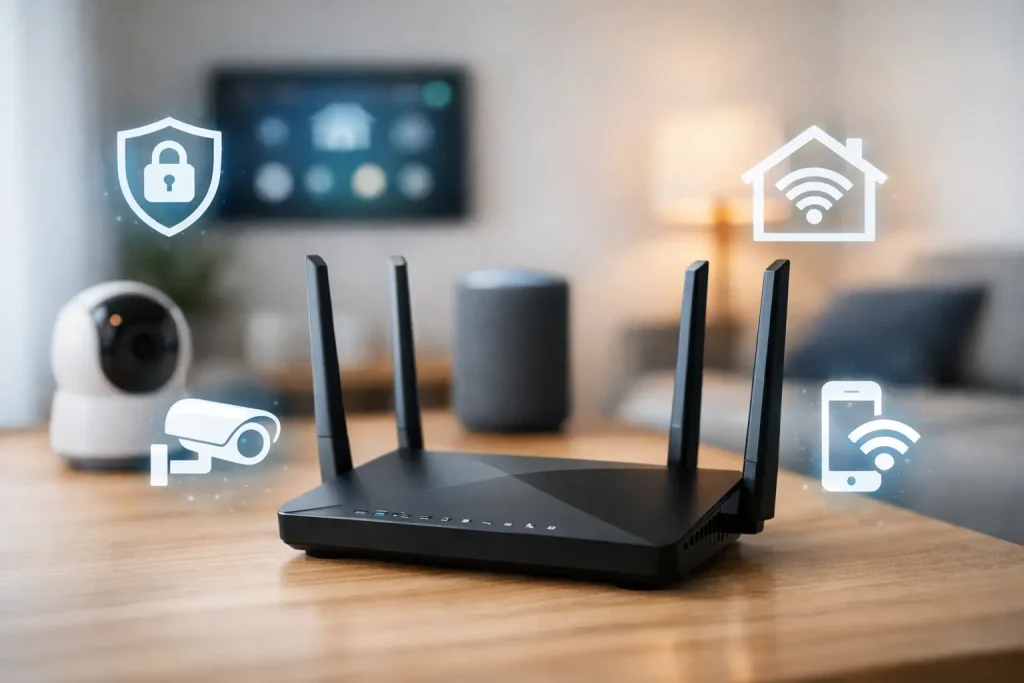
Your video doorbell, robot vacuum, smart TV, and Wi-Fi light bulbs do not need the same level of network access as your laptop or phone. A router isolation guide helps you create sensible boundaries between them, so one inexpensive smart device does not become an easy path to your personal files, work computer, or banking activity.
This is not about turning your home into a corporate IT department. For most households, router isolation means putting smart-home gear on a separate Wi-Fi network and making a few intentional choices about which devices can communicate. Done well, it improves privacy without making Alexa routines, app controls, or daily streaming frustrating.
What Router Isolation Actually Means
Router isolation is the practice of limiting how devices on your home network can see or communicate with one another. Your internet connection still works, but your devices are no longer all gathered in one wide-open digital room.
The most useful setup for a typical smart home has three lanes: a primary network for trusted personal devices, an internet-only guest network for visitors, and a separate network for smart-home devices. Your phone and laptop belong on the primary network. A guest’s phone belongs on the guest network. Cameras, plugs, speakers, thermostats, and other connected gadgets can live on the smart-home network.
Not every router offers the same controls. Some call this feature an IoT network, while others use terms such as guest network, device isolation, client isolation, AP isolation, VLAN, or network segmentation. The labels vary, but the goal is the same: reduce unnecessary access.
Why Isolating Smart Devices Is Worth the Effort
Smart-home devices are convenient, but many are designed around a low price, easy setup, and cloud connectivity. That does not automatically make them unsafe. It does mean they may not receive security updates as consistently as your phone or computer, especially if they are older or from a lesser-known brand.
If every device shares one network, a compromised device may be able to scan for other devices nearby. Isolation limits that lateral movement. Think of it as closing the interior doors of your house instead of leaving every room unlocked just because the front door is secure.
It also gives guests a better experience. Friends and family can get online without receiving access to your printer, shared storage, security camera feeds, or the controls for your smart lock. For renters, this is an especially easy upgrade because it usually requires no drilling, rewiring, or landlord approval.
Isolation can also make troubleshooting less stressful. When a new smart plug refuses to connect, you know which network settings to check instead of wondering whether a household laptop, game console, or work VPN is involved.
Choose the Right Level of Router Isolation
You do not need VLANs and advanced firewall rules to make meaningful progress. The best option depends on the router you already own and how much you rely on local smart-home control.
Easiest option: use a guest network for IoT devices
Many routers include a guest Wi-Fi option, even those supplied by an internet provider. Create a guest network with its own strong password, then connect smart-home devices to it. If the router offers a setting like “allow guests to access local network” or “allow access to intranet,” turn it off.
This is a practical first step, but it has a trade-off. Some devices need to communicate locally with your phone, streaming device, hub, or printer. A smart TV may no longer be easy to cast to. A camera app may work when you are away from home through the manufacturer’s cloud service but fail to load a local video stream while you are home.
Better option: an IoT network
Some newer mesh systems and standalone routers offer an IoT network built for smart devices. This is often the sweet spot for beginners because the router handles much of the separation while preserving expected smart-home behavior.
Before moving everything, check whether the IoT network is limited to 2.4 GHz. That is often helpful, not a drawback, because many budget-friendly smart plugs, bulbs, and sensors only support 2.4 GHz Wi-Fi. Your phone can remain on the faster primary network while the smart device joins the band it actually supports.
Advanced option: VLANs and firewall rules
A VLAN creates a truly separate network segment, while firewall rules control what traffic may pass between segments. This gives you the most flexibility. For example, you can allow your phone to reach a local home hub but block all other smart devices from reaching computers.
The trade-off is complexity. VLANs may require compatible routers, managed switches, access points, and time to test rules. They are worthwhile for larger homes with many cameras, local servers, or network-savvy owners, but they are not a requirement for a safer first smart home.
Router Isolation Guide: Set It Up Without the Overwhelm
Start by opening your router or mesh system app. Look under Wi-Fi, Network, Guest Network, Security, Advanced Settings, or Smart Home. The exact path depends on the brand, but most consumer systems explain the choices in plain language.
First, update the router’s firmware. Router updates can fix known security problems and sometimes add better network controls. Change the router administrator password too. This is separate from your Wi-Fi password and should never remain the default printed on the device.
Next, create a separate network for smart-home devices. Give it a clear name, such as “Home-IoT,” but do not include your address, family name, or apartment number. Use WPA3 security if every device supports it. If older smart-home gear cannot connect, WPA2-Personal with a long, unique password is still a reasonable choice.
Then enable the isolation setting available to you. On a guest network, this usually means blocking local network access. On an IoT network, it may be called device isolation or network isolation. Read the short description before switching it on: some routers isolate devices from one another as well as from your primary network.
Move devices gradually rather than all at once. Start with low-stakes gear such as smart plugs, bulbs, or a robot vacuum. Test app control, schedules, voice commands, and automations. Then move cameras, doorbells, thermostats, displays, and speakers one category at a time.
Keep a simple note of each device, its app, and the network it uses. This saves a surprising amount of time when you replace a router, change internet providers, or troubleshoot a device months later.
Devices That May Need an Exception
Isolation should make your home safer, not less useful. Certain devices depend on local discovery, which means they look for one another directly on your Wi-Fi rather than through the internet.
Streaming is a common example. Chromecast, AirPlay, and some smart TV apps may not work properly when your phone and TV are separated. You may decide to keep a streaming box or television on the primary network if casting matters more to your household than strict separation. Another option is to use router settings that allow discovery across networks, but these settings can be confusing and are not available everywhere.
Local smart-home hubs can need similar treatment. If you use a hub that controls lights, locks, or sensors inside your home, it may need permission to communicate with the IoT network. Some hubs work best on the primary network, while Wi-Fi devices remain isolated. Test a door lock, light routine, and sensor alert before relying on the setup.
Printers deserve their own decision. A printer used for work or sensitive documents is generally better kept on the primary network, not on an open guest network. If guests need to print, temporarily share a file or use a secure printing method instead of weakening the whole network.
Do Not Mistake Isolation for Complete Protection
A separate network is one useful layer, not a magic shield. Smart-home privacy still depends on the account behind each device. Use unique passwords for device apps, turn on two-factor authentication when offered, and remove old household members or former roommates from shared access.
Also review device permissions. A video doorbell app may need notifications and camera access during setup, but it may not need your precise location all the time. Disable features you do not use, especially cloud sharing, public links, remote administrator access, and automatic account connections.
Avoid buying devices that require outdated security settings, ask you to disable router protections, or come from brands with no visible support or update history. A bargain smart plug is not a bargain if it creates a security headache later.
Finally, remember that convenience has value. If isolation breaks the routines that make your home easier to manage, adjust the setup rather than abandoning it. Start with sensible separation, test what your household actually uses, and build a nest that feels protected without becoming difficult to live in.