The best Apple Home hub is the one that gives your household reliable control when you are away, supports the accessories you actually want to use and fits naturally into a room where it can stay powered and connected. For most homes, that decision comes down to Apple TV or HomePod, not a long list of extra hardware.
Start with the job the hub needs to do. If the home already has an Apple TV near the main television, it can be a practical control point for Apple Home. If voice control and music are central to the household, a HomePod may make more sense. Either way, confirm the exact model before buying, especially when Thread accessories are part of the plan.
Quick answer: which Apple Home hub should you choose?
- Choose Apple TV when: you already use it in the main room, want a screen-based media device as part of the setup or have a stable location near the router.
- Choose HomePod or HomePod mini when: voice control, timers, music and everyday spoken requests matter in the room where the hub will live.
- Choose a Thread-capable model when: you plan to use Thread-based lights, locks, sensors or other accessories. Check the exact model, not just the product family name.
- Do not buy a separate hub yet when: the household is still deciding on its first few devices. Begin with a small, compatible setup, then choose the hub that supports the routine you keep using.
Apple explains that a home hub enables remote control, shared household access and automations. It is also required to add Matter accessories to Apple Home. See Apple's current home hub setup guide for the latest supported setup steps.
What an Apple Home hub actually does
An Apple Home hub is the always-available control point for the home. It lets you check compatible accessories while away, share control with household members and run automations without leaving a phone at home. That makes a hub useful for a door lock, a vacation lighting routine, a temperature alert or a camera notification that needs to reach you outside the house.
It does not replace every brand bridge. Some accessory systems still work best with their own bridge for particular features or a larger device setup. Treat the Apple Home hub as the household control point, then add a brand bridge only when the specific products and features call for it.
Apple TV vs. HomePod: choose by room and routine
Apple TV is a strong fit for a main living room
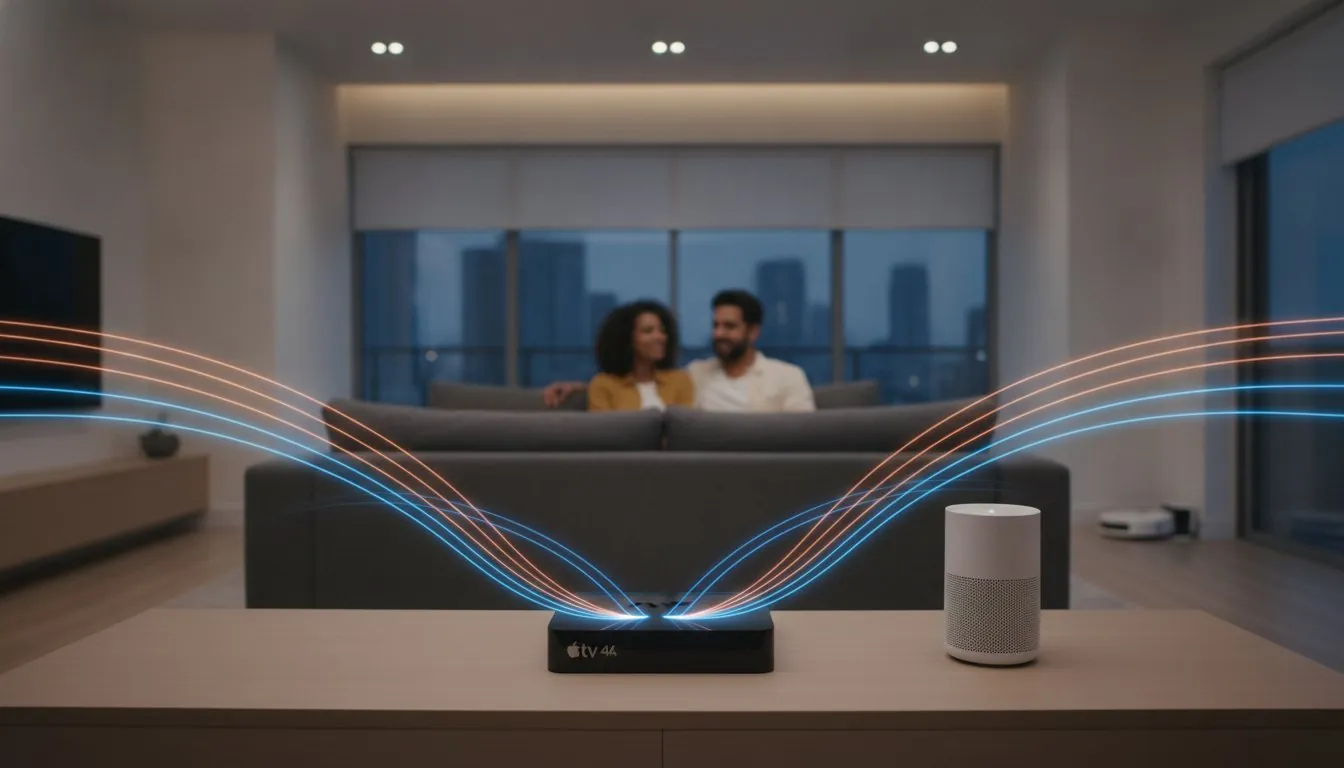
Apple TV can make the most sense when the television room is already where the household watches, controls and checks connected devices. It stays powered, is easy to find when troubleshooting and can keep Apple Home close to the screen people already use.
Choose it when a stable placement and dependable network connection matter more than having a speaker in every room. If it is connected by Ethernet, follow Apple's current setup guidance when pairing accessories, because the phone and hub may need to be on the same Wi-Fi network during setup.
HomePod is a strong fit for voice-first households
HomePod and HomePod mini are useful when the room needs an easy voice control point as well as a hub. A kitchen, living room or bedroom can become simpler when someone can ask for a light, timer, scene or temperature change without opening an app.
Put it where Wi-Fi is dependable and where the household will actually use it. A hub hidden in a weak-signal corner is less useful than a modest device placed in the room where routines happen every day.
Thread and Matter: the compatibility check that matters
Matter describes a common way compatible accessories can work across smart-home platforms. Thread is a low-power network used by some accessories. They are related, but they are not the same thing. A Matter device does not automatically mean every Apple Home setup needs Thread.
If you plan to add Thread accessories, confirm that the exact Apple device can act as a Thread border router. Apple currently lists Thread-capable options that include Apple TV 4K (2nd generation), Apple TV 4K (3rd generation) Wi-Fi + Ethernet, HomePod (2nd generation) and HomePod mini. Apple's Thread support guide is the best place to verify the current model list before buying.
- For a few Wi-Fi accessories: focus first on reliable Wi-Fi and clear Apple Home support.
- For Thread accessories: confirm a Thread-capable hub, the exact accessory model and its setup requirements.
- For Matter accessories: check the product page for Apple Home support and keep the household's Apple devices updated before pairing.
Set up the hub for reliability, not just convenience
- Update the iPhone, iPad, Apple TV or HomePod used for setup.
- Sign in with the Apple Account that owns the home and make sure two-factor authentication and iCloud Keychain are available when Apple asks for them.
- Place the hub where it has steady power and a dependable network connection.
- Open Home Settings, then Home Hubs & Bridges, to confirm which device is active after setup.
- Add one accessory, test it at home and away, then build out the next room.
Apple's Apple Home update guidance also confirms that iPad is not supported as a home hub on the current Home architecture. Do not build a new setup around an old iPad left on a shelf.
When a separate bridge still makes sense
A bridge can be worthwhile when it solves a real compatibility or range problem for a group of accessories. For example, a lighting system with many bulbs, switches and sensors may benefit from its own bridge if that is how the manufacturer delivers the controls the household wants.
Do not add a bridge simply because it sounds more advanced. First decide whether the home needs more reliable lighting, a better lock routine, camera alerts or a simpler temperature schedule. Then choose the equipment that directly supports that job. For a broader starting point, see SavvyNests' smart-home automation guide.
A simple Apple Home starter plan
- Choose the first routine: arrival lighting, a door lock check, a temperature schedule or a bedtime scene.
- Pick Apple TV or HomePod based on where the household will naturally use it.
- Check each accessory for Apple Home support before ordering.
- Verify Thread support only when the accessory requires it.
- Test remote control and the routine itself before adding another category of devices.
For a practical walkthrough after choosing Apple TV, use the Apple TV home hub setup guide. Starting small makes it easier to spot a weak Wi-Fi area, a compatibility issue or a routine that needs to be simplified before the home has dozens of connected devices.
Frequently asked questions
Do I need an Apple Home hub?
A home hub is needed for remote control, household sharing, automations and Matter accessories in Apple Home. Apple supports Apple TV and HomePod models as home hubs.
Is Apple TV or HomePod better as an Apple Home hub?
Apple TV is usually the better fit when it already has a stable place near the TV and an Ethernet connection is practical. HomePod is often the easier choice when voice control and music matter more in the room where the hub will live.
Can an iPad still be used as an Apple Home hub?
No. Apple says iPad is not supported as a home hub on the current Apple Home architecture.
Do I need Thread for Apple Home?
Only Thread-based accessories need a Thread border router. Check the exact device model before buying because Thread support varies across Apple TV and HomePod models.
The best Apple Home hub fits the way the home is used
Choose Apple TV when the main room and television setup make it the natural control point. Choose HomePod when voice control and music will make the hub more useful every day. Then check compatibility before every accessory purchase, especially for Matter and Thread. That approach builds a dependable Apple Home setup without buying hardware that does not solve a real household need.