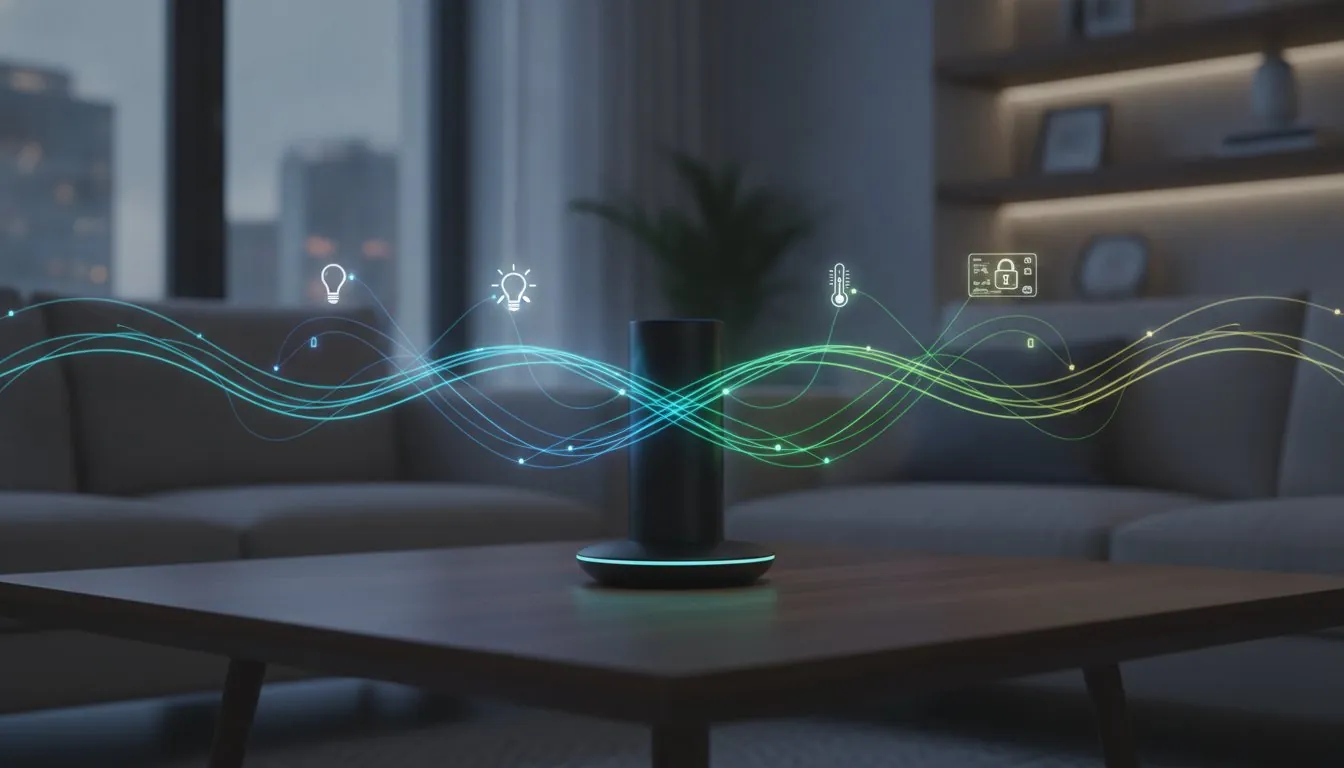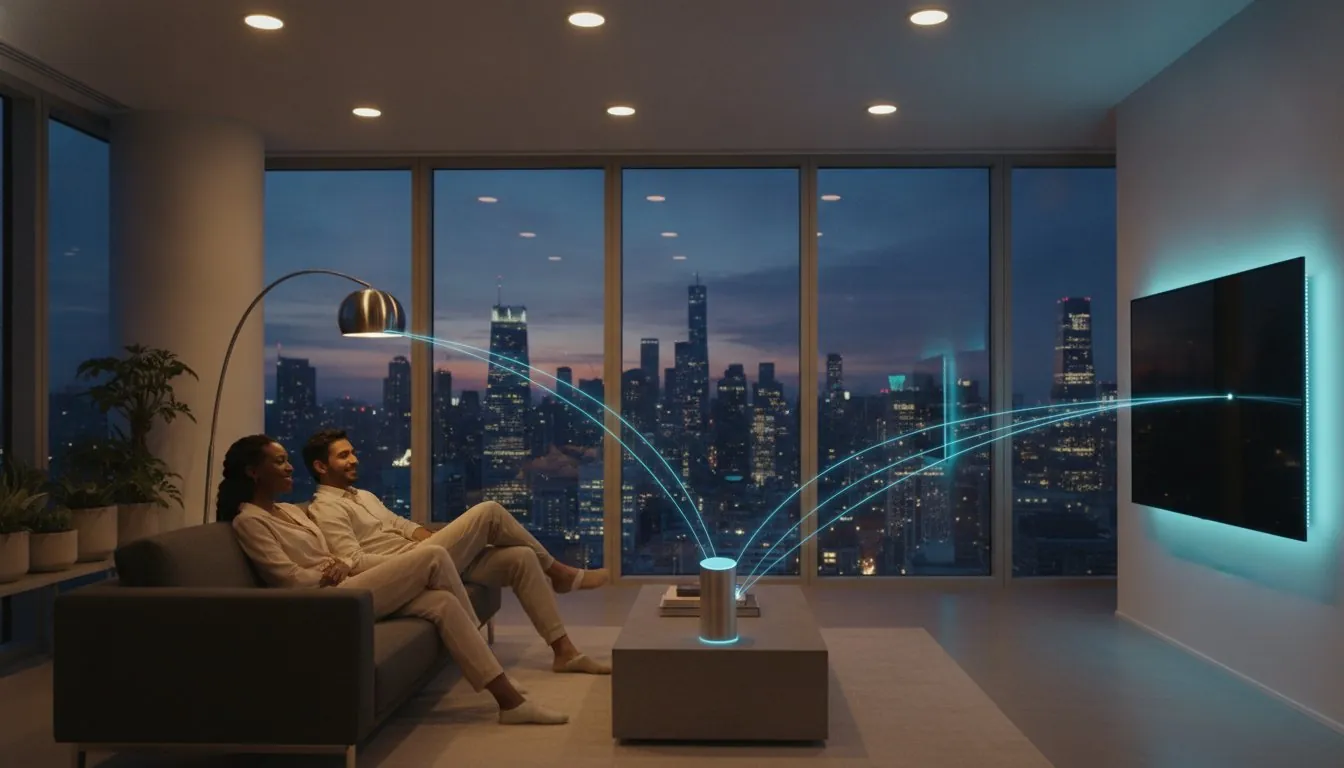
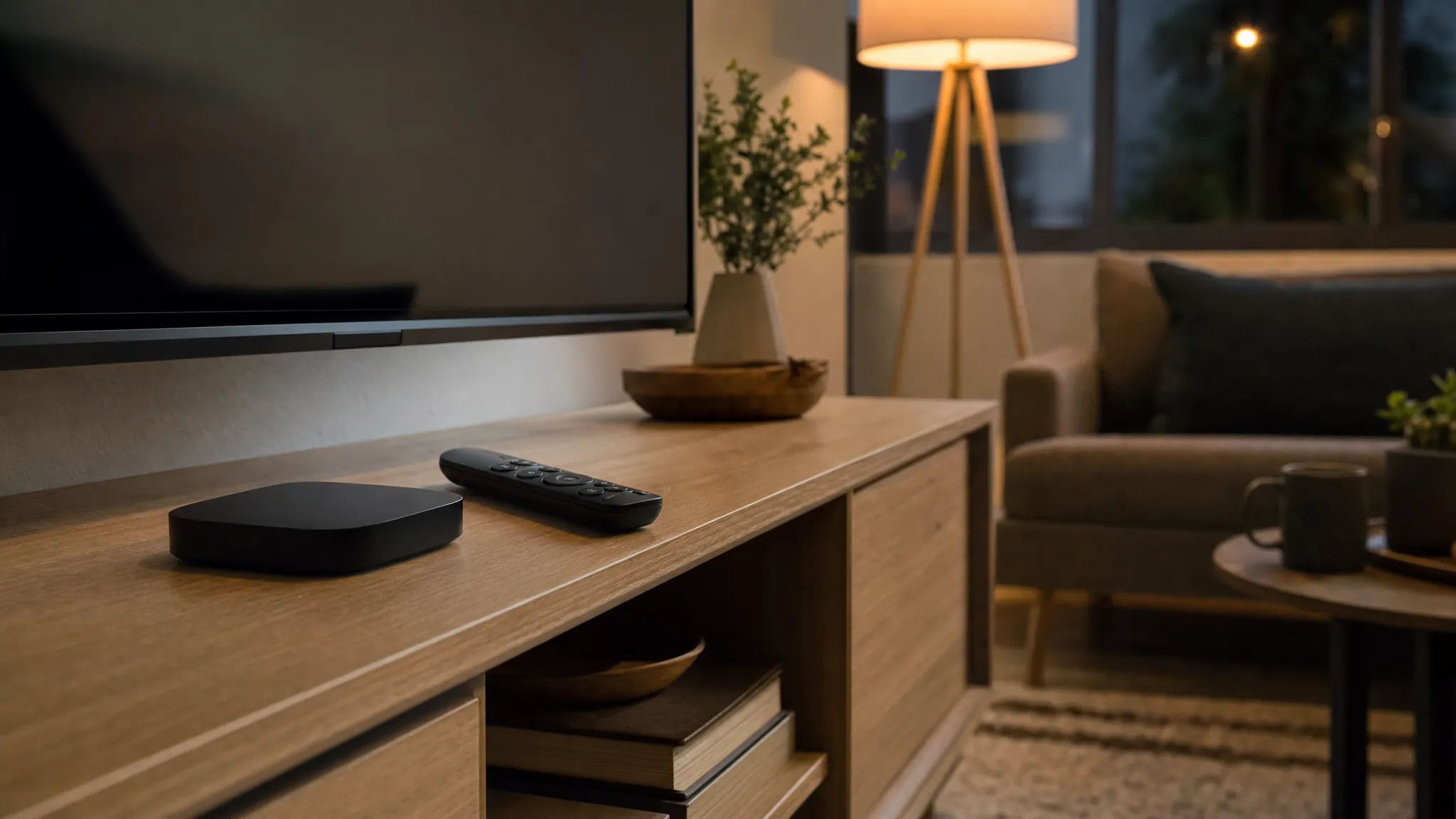
Setting up an Apple TV as a home hub is one of the simplest ways to make an Apple Home setup useful when you are away from home. Once it is ready, compatible lights, locks, sensors, cameras, and automations can keep working through the Home app instead of only when your iPhone is on the same Wi-Fi network.
The important part is not finding a hidden button that says “make this a hub.” Apple TV handles the role automatically when the right account, home, software, and network details are in place. Most setup problems come from one of those basics being slightly out of line.
This guide walks through the checks that matter before you start, the setup order that avoids unnecessary resets, and the quick tests that show whether remote control is actually working.
What an Apple TV home hub does
An Apple TV home hub gives the Apple Home app a dependable device that stays at home. That makes remote control, shared-home access, and automations more useful. For example, a person can check a compatible camera while away, turn on a light before arriving home, or let a time-based routine run without leaving an iPhone nearby.
It is not a replacement for every brand-specific bridge. Some lights, locks, and sensors still need their own bridge for their full feature set. The Apple TV gives Apple Home a reliable connection point, while a bridge can still handle the devices from one particular brand. The difference is worth understanding before buying more gear, and SavvyNests' guide to hubs and bridges explains the roles in plain language.
Apple's current Apple TV home-hub instructions confirm that the Apple TV is set up as a hub automatically after the required account and home settings are in place. That is why the first few checks matter more than repeatedly restarting the box.
Before you start: four checks that save time
Pause for five minutes before changing any settings. A home hub is a small part of a bigger setup, so the same Apple Account, Wi-Fi network, and Home app need to agree about which home they belong to.
- Update the Apple TV. Install the current tvOS update before troubleshooting anything else. A system update can also update Home support and fix a pairing issue that looks more complicated than it is.
- Use the same Apple Account. The Apple TV and the iPhone or iPad used to manage the home should be signed in to the Apple Account that owns or has access to that Apple Home. If another household member set up the home, make sure they have invited you through the Home app before you begin.
- Turn on two-factor authentication and iCloud Keychain. Apple lists both as requirements for the account used with a home hub. These settings protect home access, so they are not steps to skip just because the home is small.
- Confirm a stable home network. The Apple TV needs a consistent connection at home. Ethernet is worth considering when the media console is close to a router or network jack, but solid Wi-Fi can work well too. The goal is reliability, not a particular cable.
If the router has separate guest and main networks, keep the Apple TV on the trusted home network. A guest network can block the local discovery that connected devices need. SavvyNests' router isolation guide can help you separate devices thoughtfully without making the home harder to control.
How to set up Apple TV as a home hub
Once the basics are ready, the setup itself is straightforward. Start with the Apple TV connected to the television and internet, then work through these checks in order.
1. Sign in to the Apple Account that uses the home
On Apple TV, open Settings and check the account details. It should be the same Apple Account used in the Home app on the iPhone or iPad that manages the home. If the Apple TV belongs to a shared household, do not assume that seeing the right television profile means the right Apple Account is connected for Home access.
2. Confirm the Apple TV can see the correct home
Open the Home settings on the Apple TV and look for the home name. A person with more than one property, apartment, or test home can easily select the wrong one. If the expected rooms and accessories are missing, solve that account or invitation issue first rather than deleting accessories and adding them again.
3. Let Apple TV complete the home-hub setup
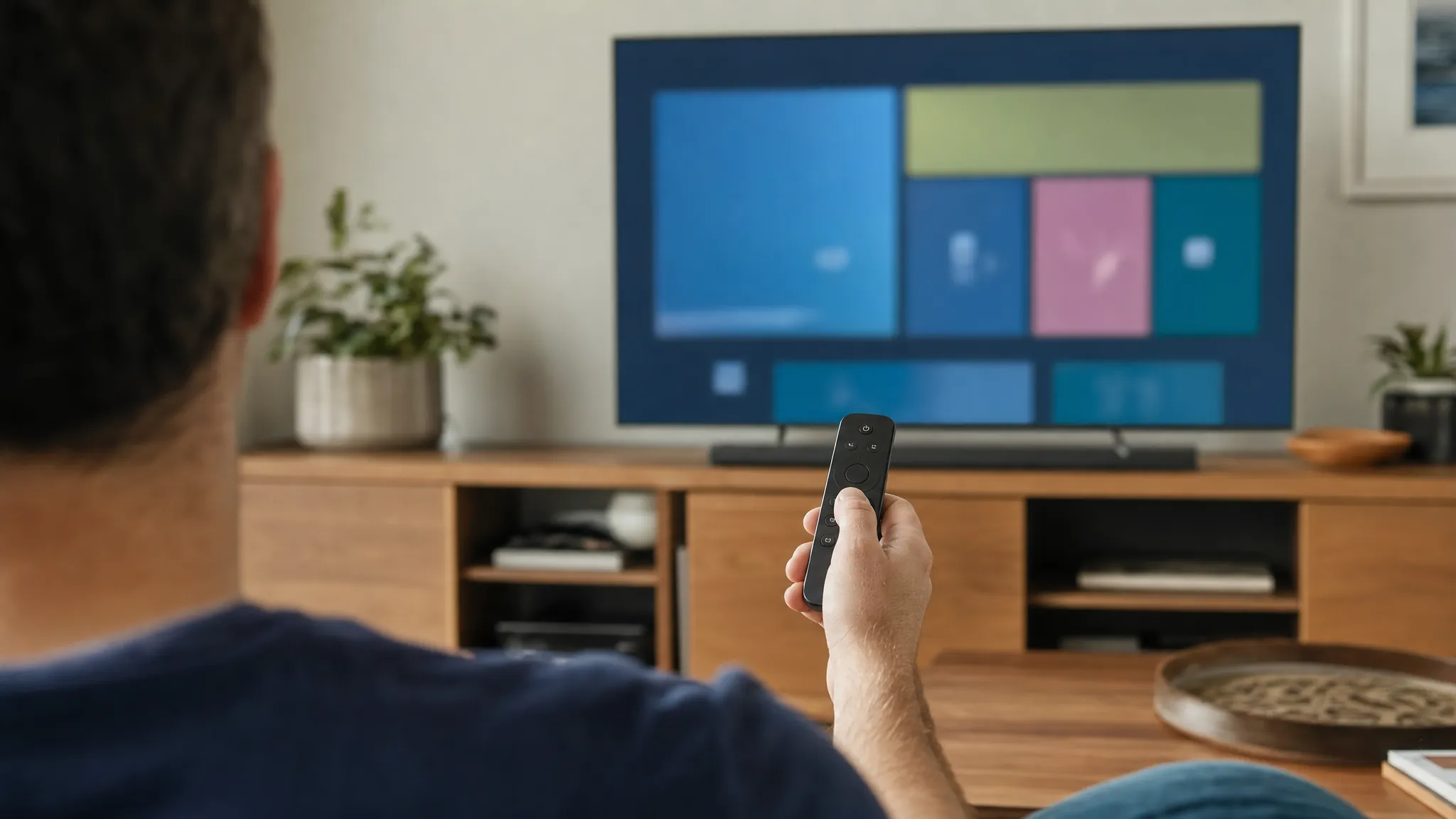
With the account and home connected, Apple TV should take on the home-hub role automatically. Give it a few minutes after signing in or updating. Avoid unplugging it during that time. The useful sign is not a special confirmation animation, it is that the home appears correctly and remote control begins to work from a phone that is away from the home network.
4. Check the Home app on an iPhone or iPad
In the Home app, open the home settings and look for the home-hub area. The Apple TV should show as connected once setup has settled. If it does not appear immediately, confirm the Apple TV is awake, online, updated, and using the right Apple Account before changing anything else.
5. Test one real accessory away from home Wi-Fi
Turn off Wi-Fi on the iPhone, use cellular service, then try a low-risk action such as checking a lamp status or turning a plug on and off. This is the test that matters. A device responding inside the home only proves local control; it does not prove the home hub is available for remote access.
Remote access, shared control, and automations
A home hub makes Apple Home more useful for the everyday tasks that happen when nobody is standing in front of the television. Remote access is helpful for checking a camera, receiving a sensor alert, or turning on a light before returning after dark. It is not a reason to automate every device in the home.
Start with one simple automation. A front-entry light that comes on at sunset or a bedside lamp that turns off at a set time is easier to test than a large scene involving ten devices. SavvyNests' simple automation ideas are a good next step once the hub connection is steady.
For a shared home, invite only the people who genuinely need access and decide what each person should be able to control. Shared control is convenient, but it also means someone else can change lights, locks, or notifications. Keep the household conversation clear, especially with door locks and cameras.
Thread, Matter, and device compatibility
An Apple TV home hub can be part of a Thread and Matter setup, but the labels on a device still matter. Matter describes a shared way for compatible devices to work across several home platforms. Thread is a low-power mesh network that some sensors, lights, plugs, and locks use. They solve different problems.
Before buying a Thread accessory, confirm that the specific Apple TV model and the rest of the home support the connection the device expects. A product page that says “Matter” does not automatically mean every feature appears in every app, and a Thread device may need suitable Thread coverage between the Apple TV and the accessory. SavvyNests' Matter guide and compatibility checklist can help you separate the useful labels from the marketing noise.
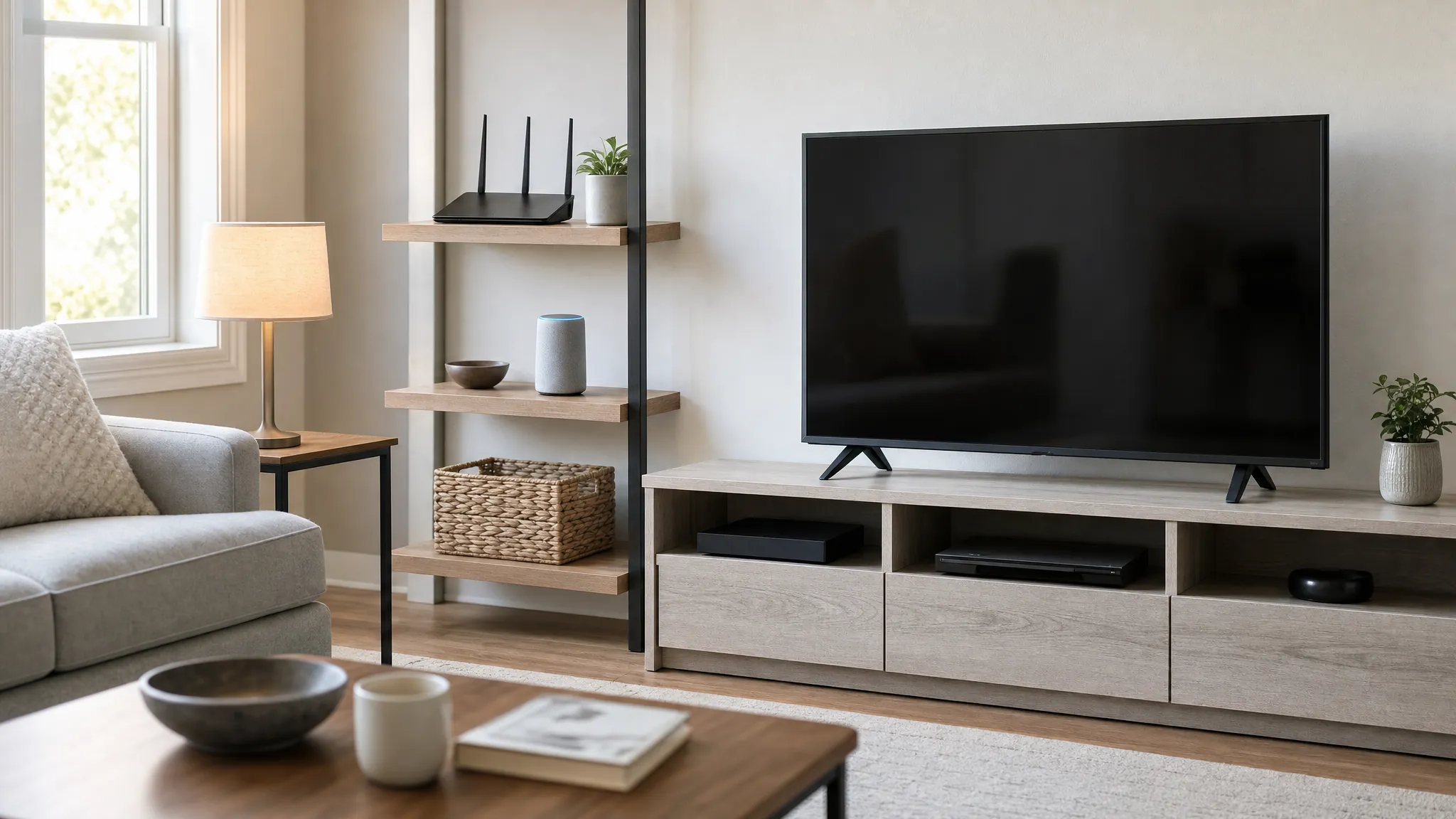
For a small home with a few Wi-Fi devices, do not buy extra hubs just because a product description mentions Thread. Begin with the devices and platform already in the home. Add a new connection method only when it solves a real range, battery-life, or compatibility problem.
When the Apple TV does not show as connected
Most connection problems have a small cause. Work through the checks below one at a time so it is clear what changed.
- The home is missing on Apple TV: Recheck the Apple Account and Home invitation. The Apple TV needs access to the same home, not simply an account that belongs to someone in the household.
- The Apple TV is visible but not connected: Check for a tvOS update, then confirm the network connection and account security requirements. Restart the Apple TV only after those basics are confirmed.
- Accessories work at home but not remotely: Test with phone Wi-Fi turned off. If remote control still fails, check the home-hub status and make sure the router is not placing the Apple TV or accessories on an isolated guest network.
- One Thread accessory is unreliable: Move it closer temporarily, check its battery, and test it after removing any thick metal obstruction or dense cabinet enclosure between it and the rest of the home. The issue may be reach, not the Apple TV.
- Automations run inconsistently: Simplify the first rule. Test one trigger and one action before adding time conditions, presence rules, or several accessories at once.
A calm, staged approach works better than removing every accessory. SavvyNests' connection troubleshooting guide can help when the problem is broader than the home hub itself.
How SavvyNests helps you build a dependable Apple Home setup
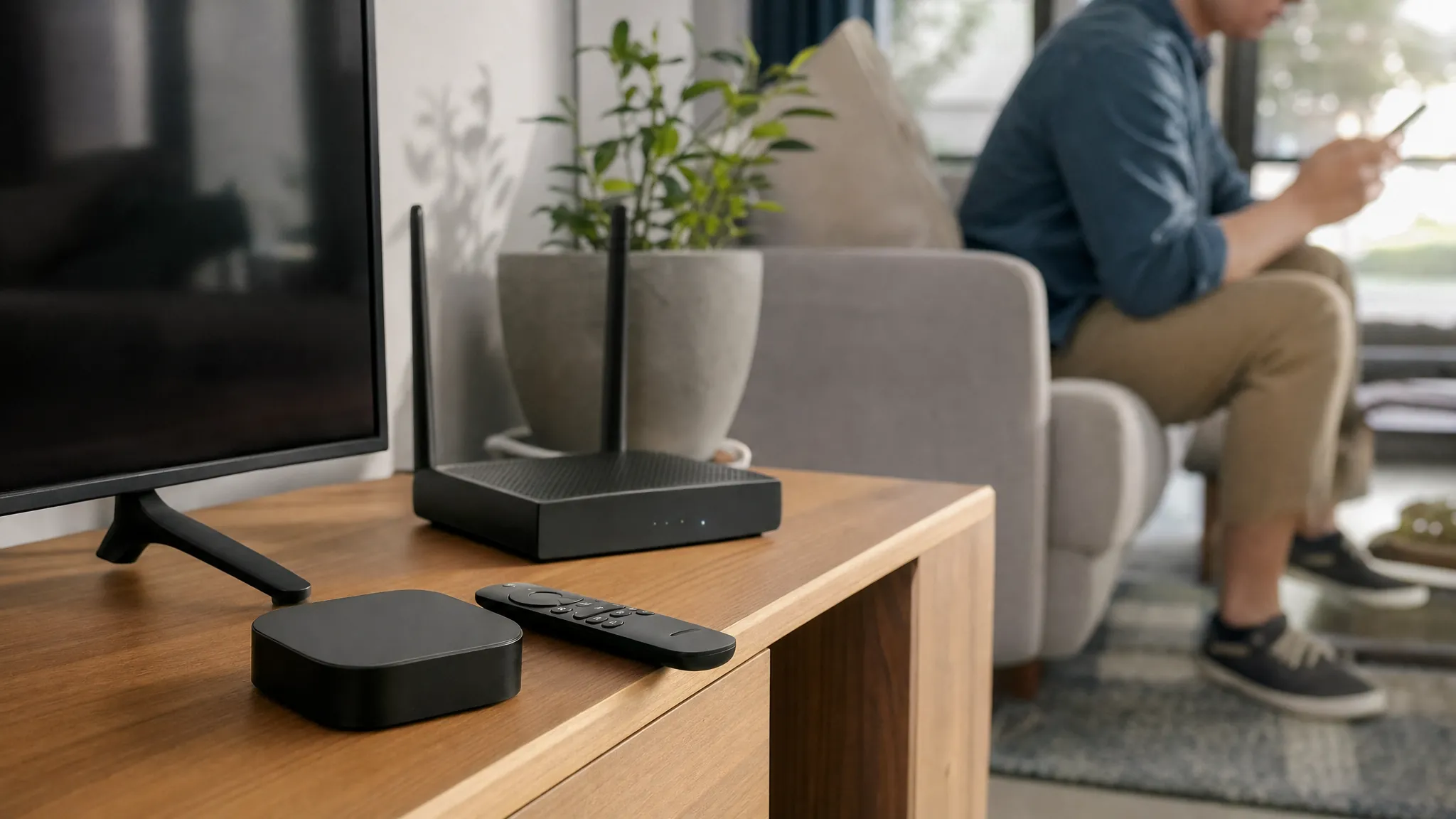
Apple Home works best when the control point, device compatibility, Wi-Fi coverage, and household routine are considered together. SavvyNests focuses on those practical checks so a home stays easy to use after the first week. For the broader choice between Apple TV, HomePod, and other options, read the Apple Home hub buying guide before adding new hardware.
Frequently asked questions
Do I have to turn on the home-hub setting on Apple TV?
No. When the Apple TV is set up with the right Apple Account, security settings, home, and network connection, it is configured as a home hub automatically. Check the Home app's home-hub status if you need to confirm the connection.
Can I use an Apple TV as a home hub without a HomePod?
Yes. An Apple TV can serve as the home hub on its own. A HomePod can also participate in an Apple Home setup, but you do not need both devices just to enable remote access and basic automations.
Does Apple TV need Ethernet to be a home hub?
No. A stable Wi-Fi connection can work well. Ethernet can be a worthwhile choice when a network jack is nearby or the media area has weak Wi-Fi, but it is not a requirement for the home-hub role.
Can I control Apple Home devices when I am away?
Yes, when the Apple TV home hub is connected and the accessory supports remote control through Apple Home. Test using cellular service rather than home Wi-Fi to confirm that the remote connection is actually working.
Why does my Apple TV home hub show as disconnected?
Start with the Apple TV's network connection, current software, Apple Account, two-factor authentication, iCloud Keychain, and correct home access. If those are in order, restart the Apple TV and wait a few minutes before making larger changes.