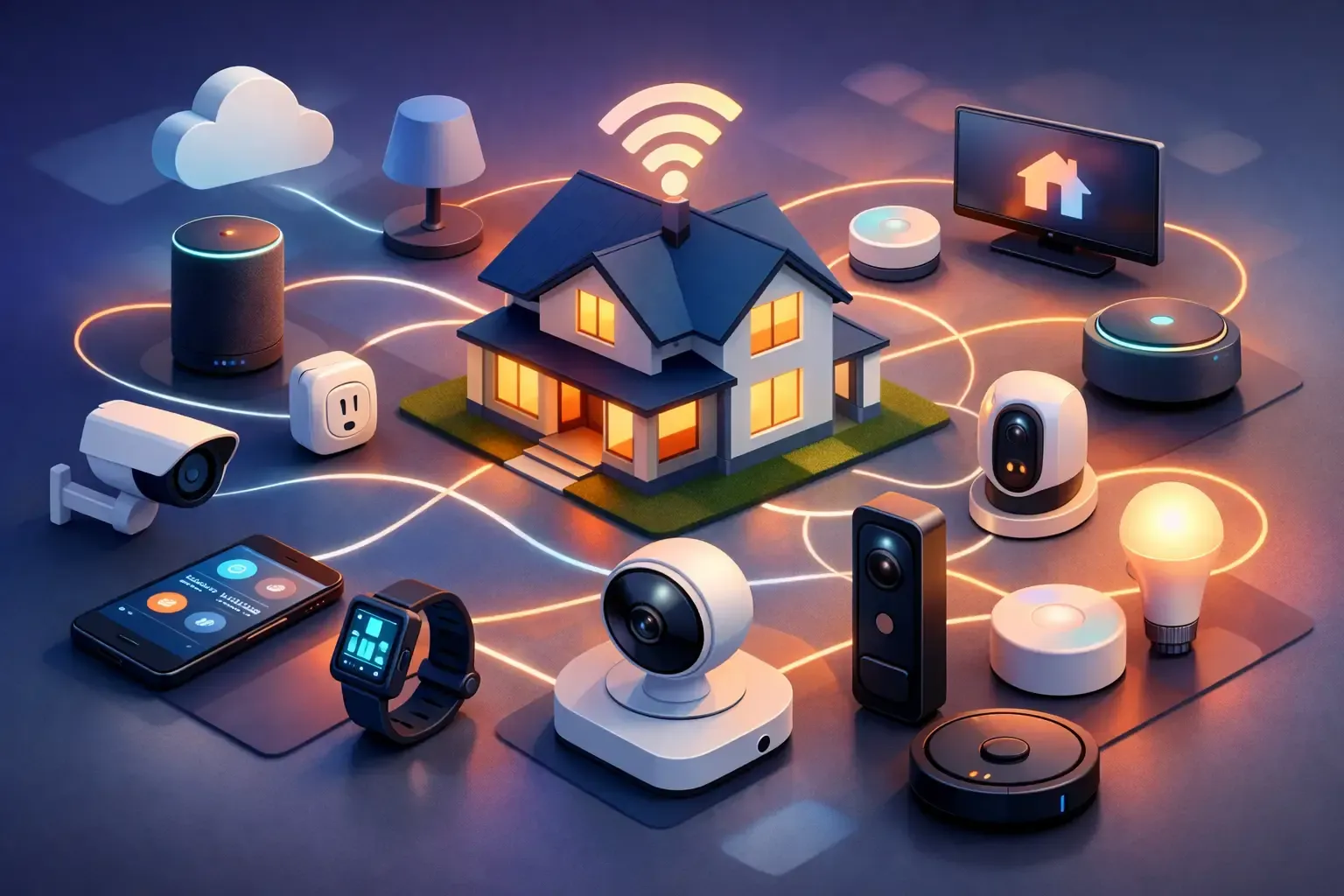
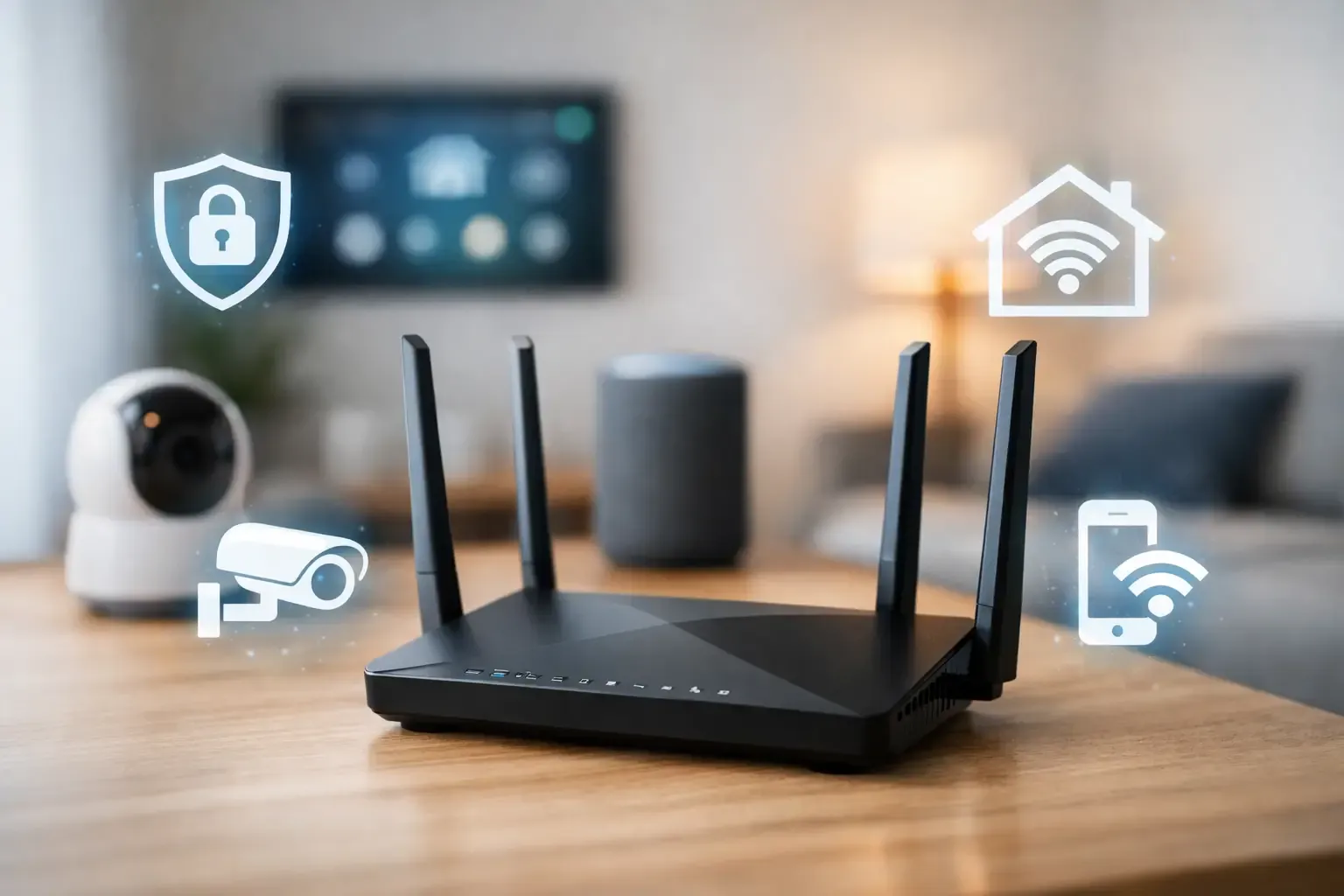
Smart-home Wi-Fi is easy to ignore until a doorbell stops loading, a thermostat drops offline, or a setup app cannot find a new device. The useful fix is rarely buying more gadgets. It is understanding whether the problem is coverage, a device’s connection limits, a crowded location, or a network setting that does not fit the way the household uses its home.
A dependable smart-home network does not need to feel like a business network. It needs a clear starting point: a router in a sensible location, a strong unique password, current software, and enough signal where the devices actually live. From there, you can make small changes, test them in the rooms that matter, and avoid turning a simple setup into a weekend project.
Quick answer: start with coverage and compatibility
Before replacing a router or adding a mesh system, walk through the home with the phone you use to control devices. Check the front door, garage, basement, back room, and the spot where a thermostat, camera, or sensor will live. If a phone loses a stable connection there, a Wi-Fi smart device is unlikely to be more reliable. If the phone works but one device will not join, its supported band, app permissions, account setup, or placement is more likely to be the issue.
The Federal Trade Commission recommends using WPA3 Personal where available, or WPA2 Personal when WPA3 is not practical, changing the router’s default administrative login, and keeping router software current. Those are worthwhile foundation steps because the router is the point through which every Wi-Fi device enters the home.
- Coverage problem: improve router placement or add coverage where the signal genuinely falls away.
- Setup problem: check the device’s supported Wi-Fi band, phone permissions and the app’s instructions.
- Security problem: update the router, use a unique admin password and review remote-management settings.
- Reliability problem: test one device in its actual location before moving the rest of the home around it.
Why smart-home devices behave differently on Wi-Fi
Not every connected device asks the network for the same thing. A smart bulb may send a tiny command a few times per day. A camera can need steady bandwidth and a good signal whenever it uploads video. A speaker, television, phone, and computer may all compete for connection time in the same room. That is why a home can feel fine for browsing while one camera or thermostat behaves poorly at the edge of coverage.
Many smart-home accessories support only the 2.4 GHz Wi-Fi band. That is normal. Google’s Wi-Fi guidance notes that 2.4 GHz generally reaches farther than 5 GHz or 6 GHz, while newer bands can offer more capacity closer to the router. Do not treat 2.4 GHz as outdated or automatically bad for a plug, sensor, or thermostat. The right band is the one the exact device supports reliably in its real location.
Some routers use one network name and choose the band for each device automatically. Others show separate 2.4 GHz and 5 GHz names. Both approaches can work. The important part is following the device maker’s setup instructions, rather than repeatedly changing router settings until a pairing screen happens to work.
It also helps to distinguish Wi-Fi from the other connections in a smart home. Bluetooth is often used for close-range setup, while Zigbee, Z-Wave, Thread, and Matter accessories can use a compatible hub or controller rather than joining the Wi-Fi network directly. That can reduce the number of devices asking the router for a connection, but it does not remove the need for a stable internet connection when the household relies on remote access, cloud alerts, or voice services. Check the connection type before blaming the Wi-Fi.
Place the router for the home you have
Router placement is often more useful than a speed-test number. Put the main router in an open, central-ish location when possible, raised off the floor and away from dense cabinets, large metal objects, water, and enclosed utility closets. A router hidden behind a television or inside a media cabinet can still serve nearby devices, but it starts every far-room device at a disadvantage.
You do not need to chase a mathematically perfect center of the floor plan. Start with the areas where connectivity matters most: the front entry for a doorbell, the room with a thermostat, the work space, and any exterior camera location. If those points are all on one end of a long home, place the router to favor that real use instead of the home’s geometric center.
A mesh point can help when there is a genuine dead zone, but it should sit where it still receives a strong connection from the main router. A point placed inside the dead zone has little useful connection to extend. Add one point at a time, then test the camera live view, device controls, and routine that prompted the change.
A calm setup sequence for new smart devices
- Update first. Install available router software updates, then update the smart-device app before pairing.
- Use the primary home network for setup. Keep the phone on the intended home network and allow the app’s local-network or Bluetooth permissions when it explains why it needs them.
- Confirm the device’s Wi-Fi requirements. Check the product instructions for supported bands, security modes and whether it needs a temporary setup network.
- Pair close to the router when the maker recommends it. Once paired, move the device to its final place and test it there.
- Name the device clearly. Use a room-and-purpose name that household members can understand in an app or voice control.
- Test one useful action. For a camera, test the live view and an alert. For a light, test manual control and the intended routine. For a thermostat, confirm the status updates.
Do not add several categories of devices in one afternoon. A gradual setup makes it obvious which change caused a problem, and it gives everyone time to learn the controls. The Smart Home Automation Guide can help you decide which routines are worth building after each device works reliably on its own.
When a device cannot find your network
Start with the small checks. Confirm the phone is connected to the expected Wi-Fi network, stand closer to the router during setup, and make sure the network name is broadcasting normally. A smart device may not support a hidden network, a 5 GHz-only network, an enterprise sign-in, or the newest security setting. Its manual should state those limits clearly.
For devices that need 2.4 GHz, do not immediately split every band or weaken the whole network. Check the router maker’s current guidance first. Some systems temporarily steer the phone to 2.4 GHz during setup, while others let you turn off a higher band briefly. Google notes that a device limited to 2.4 GHz may need a phone connected to that band for setup. Follow the exact device and router guidance, then return to normal settings once pairing is complete.
If a previously reliable device drops offline, test power, Wi-Fi signal, and the manufacturer app before factory-resetting it. A reset can create more work by removing a device from routines, shared-home settings, and notifications. Restarting a single affected device may be sensible. Rebooting every device in the home at once usually makes it harder to see what changed.
Secure the network without breaking the home
Start with the basics: a unique Wi-Fi password, a different unique router-admin password, current firmware, and the strongest security mode that the household’s devices can use. The FTC also advises reviewing features such as remote management, WPS, and UPnP because convenience settings can create unnecessary exposure when they are not needed.
A guest network is useful for visitors. A separate network for smart-home equipment can also be sensible, but it is not an automatic upgrade for every household. Some phones, speakers, streaming devices, hubs, and cameras need local discovery to work well together. Move a low-stakes device first, then test the controls people actually use before moving locks, cameras, or a whole lighting system. SavvyNests’ router isolation guide explains the privacy trade-offs in more detail.
Keep account security in the picture too. A secure Wi-Fi password does not protect a camera account with a reused password or an old shared user. Use unique device-account passwords, turn on multi-factor authentication when it is available, and remove former household members from shared access.
When to improve coverage, replace the router, or ask for help
Improve coverage when one or two important areas are weak but the rest of the home works well. Try placement first, then a carefully positioned mesh point or access point if the construction or layout blocks the signal. Replace an older router when it no longer receives security updates, cannot use WPA2 or WPA3, restarts frequently, or has failed basic troubleshooting with known-good devices.
Ask a qualified local network professional when a home needs Ethernet runs, access points in ceilings or outbuildings, advanced network separation, or persistent camera and router issues that ordinary placement and updates do not solve. The goal is not a more complicated network. It is a stable one that the household can understand and maintain.
How SavvyNests helps you build from a stable foundation
SavvyNests starts with fit before features. Once the network is dependable, you can choose compatible devices and routines with less trial and error. For a first system, use the beginner smart-home guide. For a device that needs a hub or a different connection method, the compatibility guide helps separate Wi-Fi, Bluetooth, Zigbee, Z-Wave, Matter, and Thread without turning the choice into jargon.
Frequently asked questions
Do I need a special router for a smart home?
No. A current, secure router with reliable coverage can support a small or medium smart-home setup. Consider additional coverage or a newer router only when the current equipment has dead zones, lacks security updates, or cannot keep an ordinary household connection stable.
Should smart-home devices use 2.4 GHz or 5 GHz Wi-Fi?
Use the band the device supports and the router recommends. Many smart-home devices use 2.4 GHz because it travels farther. Phones, computers, and streaming devices may use 5 GHz or 6 GHz when available. A single network name can still work when the router handles band selection correctly.
Will a guest network work for smart-home devices?
Sometimes, but test carefully. A guest network can limit access to the main network, yet it can also prevent local discovery between a phone, hub, speaker, television, or camera. Move one low-stakes device first and verify the controls you need before moving critical equipment.
Why does a smart device work near the router but not in its final room?
That pattern points to coverage, building materials, or local interference. Test the phone at the final location, improve router placement if practical, and consider adding coverage only after confirming the device itself is compatible and correctly paired.