

Why does your $250 smart thermostat decide to become a high-tech paperweight at 2 AM on the coldest night of the year? It is a question that haunts many of the 77 million U.S. households currently using connected tech. You have likely spent hours digging through digital manuals or felt that spike of anxiety when a security camera suddenly goes offline. This smart home troubleshooting guide is designed to end that cycle of frustration once and for all. We agree that technology should serve you, not the other way around.
You’re about to master the art of DIY tech repair with our simple, jargon-free roadmap to fixing disconnected or glitchy devices. We’ll walk you through our “Savvy Pillars” framework, helping you quickly identify if the issue is power, path, protocol, or program. Whether you’re dealing with the new Matter 1.6 standards or preparing your network for Wi-Fi 8, this guide gives you the confidence to manage your own tech. You’ll move from “ghost” triggers to total peace of mind, ensuring your home remains the reliable, secure sanctuary it is meant to be.
Key Takeaways
- Master the “Four Pillars” diagnostic framework to quickly determine if a device failure is caused by power, path, protocol, or program.
- Use this smart home troubleshooting guide to bring offline devices back to life by identifying hidden network congestion in homes with 50 or more gadgets.
- Resolve common mechanical and digital glitches for specific high-priority devices like smart locks and doorbell cameras with targeted, category-specific fixes.
- Discover the correct sequence for app resets and firmware updates to fix unresponsive hardware when a simple restart is not enough.
- Implement a 15-minute quarterly “Smart Home Health Check” to move from reactive fixing to proactive, stress-free maintenance.
The Savvy Diagnostic Framework: Why Smart Homes Glitch
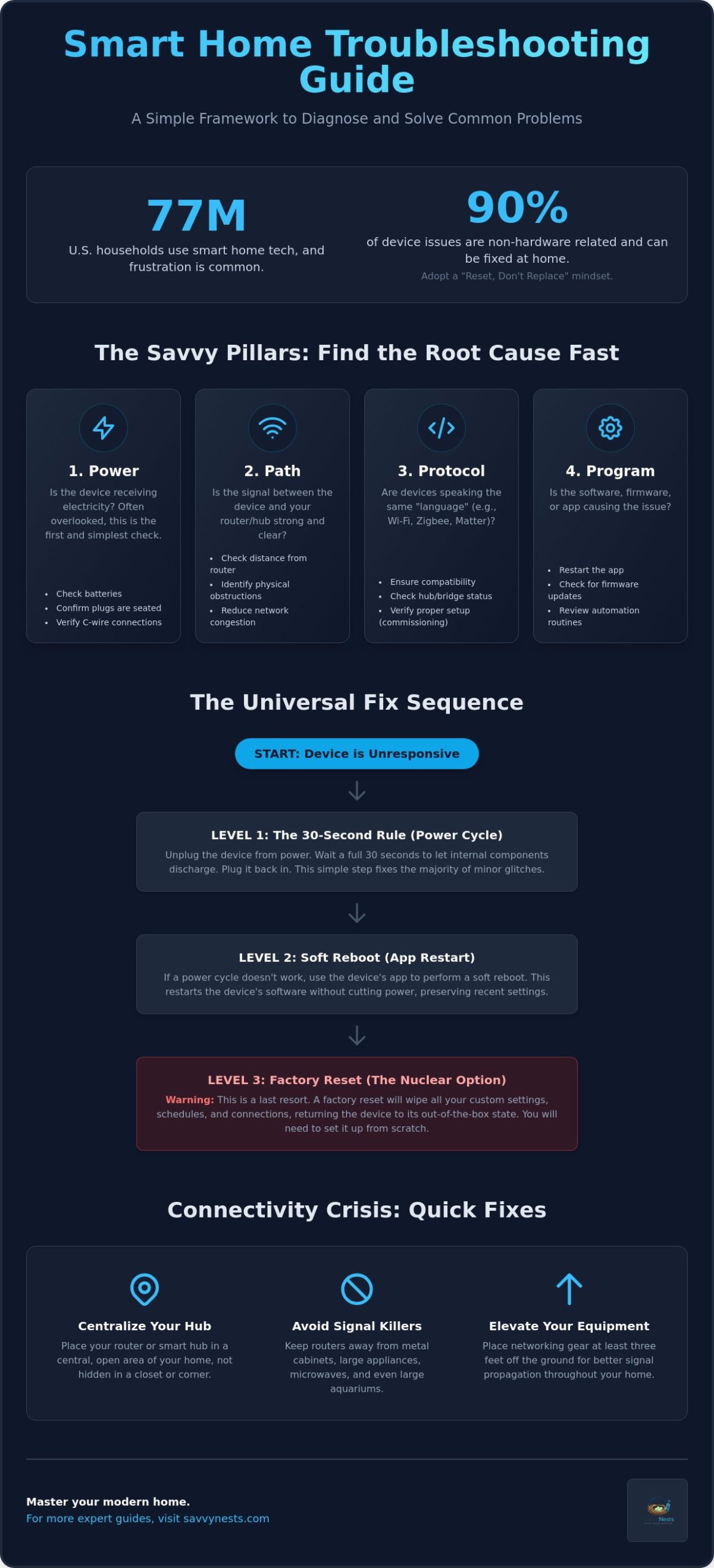
Fixing a glitchy smart bulb or an unresponsive lock can often feel like a full-time job. It’s tempting to assume the hardware is broken and start looking for a replacement, but most issues are actually quite simple to resolve. This smart home troubleshooting guide treats technical repair as a logical process of elimination rather than a complex technical chore. Industry data suggests that roughly 90% of device issues are non-hardware related. This means they are easily fixable at home without a professional or a trip to the electronics store.
By adopting a “reset, don’t replace” mindset, you can save significant money and reduce the growing problem of electronic waste. With global smart home device shipments approaching 1.25 billion units in 2026, mastering these basic skills is essential for any modern homeowner. You don’t need a degree in computer science to keep your home running smoothly; you just need a reliable framework to follow.
The Four Pillars of Troubleshooting
To find a solution quickly, we look at the four pillars of a Savvy Nest. If your device is acting up, the culprit is almost always one of these four areas:
- Power: It’s the most basic check, but it’s often overlooked. Ensure batteries are fresh, C-wires are securely connected to your thermostat, and all plugs are fully seated in their outlets.
- Path: This is the signal strength between your device and the hub or router. Even with the introduction of Wi-Fi 8 in Summer 2026, signal drops can occur in dense environments or through thick walls.
- Protocol: This refers to the “language” your devices speak. With the release of Matter 1.6, ensure your devices are properly commissioned, perhaps using the new NFC setup feature for a more stable connection.
- Program: Sometimes the software just gets confused. This pillar covers glitches in the smartphone app, outdated device firmware, or corrupted automation routines.
When to Reboot vs. When to Reset
Before you get frustrated, try the “30-Second Rule.” Simply unplug the device, wait for 30 seconds to let the internal capacitors drain, and plug it back in. This simple power cycle clears the temporary memory and fixes the majority of minor glitches. It’s a non-destructive way to get things moving again without losing your settings.
A soft reboot is slightly different, usually performed through the device’s app. It restarts the software without cutting the power, which is ideal for unresponsive apps or minor lag. However, if the device remains completely unmanageable after these steps, you may need to go further. A factory reset serves as the nuclear option for persistent software corruption. This process wipes all your custom settings and returns the device to its original out-of-the-box state, requiring you to set it up from scratch.
Connectivity Crises: Fixing Offline Devices and Signal Drops
It’s the ultimate smart home mystery. Your phone streams 4K video flawlessly, but your smart lock is suddenly “Offline.” In 2026, with over 51% of U.S. households using connected tech, the issue is rarely your actual internet speed. It’s usually network congestion. This smart home troubleshooting guide helps you navigate a home environment where 50 or more devices are constantly fighting for bandwidth. If your gadgets are frequently disappearing from your app, you should explore our deeper dive into why your smart home devices keep losing connection.
To maximize coverage and reduce drops, follow this quick placement checklist:
- Centralize your hub in an open area rather than a closet.
- Avoid placing routers inside metal cabinets or directly behind large appliances.
- Keep your equipment at least three feet off the ground for better signal propagation.
Mastering Wi-Fi and Mesh Interference
Smart bulbs and sensors typically live in the 2.4GHz “slow lane” because those waves penetrate walls more effectively than high-speed 5GHz signals. However, this lane is incredibly crowded. Common household items like mirrors, large aquariums, and even microwaves act as signal killers by reflecting or blocking these frequencies. If you’ve adopted Matter-enabled devices in 2026, pay close attention to your Thread Border Routers. These devices act as the bridge between your high-speed Wi-Fi and your low-power Thread mesh. If a Thread device drops, the issue often lies with the border router’s own connection to your main network.
Healing Your Mesh Network
Zigbee and Z-Wave networks are designed to be resilient. They use a “self-healing” feature to find the best path back to the hub if a specific device fails. If you move a device to a new room, don’t expect it to work perfectly right away; it can take up to 24 hours for the network to re-map itself. You can strengthen this map by adding “Repeaters,” which are usually any mains-powered device like a smart plug. These act as bridges to reach distant locks or cameras. A mesh network is only as strong as its nearest powered node. If you’re still building your setup, checking a smart home buying guide can help you choose devices with the best mesh range. Following this smart home troubleshooting guide ensures your mesh stays robust and your devices stay online.
Device-Specific Quick Fixes: From Smart Locks to Doorbell Cameras
Sometimes the problem isn’t a signal drop; it’s the physical interaction between your tech and your home. This smart home troubleshooting guide helps you bridge the gap between digital settings and mechanical reality. For apartment dwellers using temporary installs like no-drill smart locks, the hardware can physically shift over time, leading to false “jam” alerts. If you’re still in the planning phase or looking to upgrade, check out our smart home buying guide to select devices known for both physical durability and software stability.
Mastering your “Savvy Nest” means knowing when a device needs a software tweak and when it needs a screwdriver. Most hardware issues in 2026 stem from simple calibration errors or minor physical obstructions. By focusing on these targeted fixes, you can avoid the cost of unnecessary replacements and the frustration of a device that only works half the time.
Smart Locks and Entryway Security
If your smart lock frequently reports a “jam,” the issue is likely a misaligned deadbolt rather than a failing motor. For no-drill apartment locks that fit over existing hardware, ensure the mounting plate hasn’t loosened. A shift of even two millimeters can prevent the bolt from sliding smoothly into the strike plate. Video doorbells face a different challenge: delayed notifications. If you see a visitor walking away before the alert hits your phone, check your upload speed. High-definition 2K and 4K doorbells in 2026 require at least 5 Mbps of consistent upload bandwidth to function without lag. Finally, if your door sensor shows “open” when the door is shut, run the calibration routine in the app. This helps the sensor remember what the magnetic field looks like in a “closed” state, accounting for metal door frames or nearby interference.
Lighting and Environmental Sensors
Smart bulbs that flicker or refuse to go above 10% brightness are often victims of manual dimmer switches. These switches “starve” the smart bulb of the constant voltage it needs to keep its internal radio powered. Always use smart bulbs with standard on/off switches or dedicated smart dimmers. For motion sensors, “ghost” triggers are a common headache. These are often caused by heat signatures from HVAC vents or shadows from trees moving outside a window. Try repositioning the sensor or adjusting the sensitivity in your software to ignore minor environmental changes. If your smart thermostat refuses to trigger the AC, check the C-wire (common wire) connection. Without this dedicated power line, the thermostat might have enough battery to show the screen but not enough “juice” to engage the cooling system’s relay.
Advanced Solutions: App Resets, Firmware, and Factory Defaults
It is a common frustration: you have checked the batteries, the Wi-Fi is strong, and yet the device remains unresponsive. This smart home troubleshooting guide recognizes that in 2026, the software layer is just as likely to fail as the hardware. When you say “I updated everything and it still doesn’t work,” you are likely dealing with corrupted cache files or conflicting device profiles. Cleaning up your digital environment is the secret to maintaining a high-performance savvy nest without the stress of constant glitches.
The Software Cleanup Checklist
Your smartphone app is often the primary culprit behind laggy performance. Start by force-quitting the app and clearing its cache in your phone settings. This simple action removes temporary data that might be clashing with recent firmware updates. Next, scan your device list for “Zombies.” These are legacy profiles from old devices or failed setups that remain in your app. These ghosts can confuse your smart hub and lead to significant command delays. You should also verify that your core devices are running the latest software. As of June 2026, Google Hubs should be on Fuchsia version 30.20260121.103.1602904, while HomePod users should look for version 26.5. Keeping these updated ensures your home benefits from the latest interoperability and security standards.
The Nuclear Option: A Safe Factory Reset
When all else fails, a factory reset provides the clean slate you need. It is a powerful tool, but you don’t have to lose your entire automation history if you follow a specific order. First, you must remove the device from your primary ecosystem, whether that is Google Home, Alexa, or Apple HomeKit. This step ensures the “brain” of your home knows the device is gone and prevents duplicate entries later. Second, perform the physical reset. This typically involves holding a reset button for a specific duration or a precise power-cycling pattern. Finally, re-pair the device. For a smoother experience next time, consult our home automation tips and hacks to see which brands offer the most reliable cloud backups for your routines. With the release of Matter 1.6, re-pairing is often as simple as tapping your phone to the device via NFC, allowing you to restore your smart home’s functionality in seconds.
Future-Proofing Your Savvy Nest: Preventative Maintenance for 2026
Mastering your environment means moving beyond reactive repairs. While this smart home troubleshooting guide provides the tools to fix immediate glitches, the most successful savvy nests are built on proactive habits. You don’t need to be a technical expert to keep your system running smoothly. By spending just 15 minutes every three months on basic maintenance, you can prevent the vast majority of connectivity drops and hardware failures before they disrupt your daily life. It’s about ensuring your technology serves you with total reliability.
The Quarterly Savvy Health Check
A little bit of attention goes a long way in a home with dozens of connected gadgets. Performing a routine check-up reduces the “overwhelm” of unexpected failures. Use this quick checklist to keep your system in peak condition:
- Battery Auditing: Scan your primary app for low-battery warnings on sensors and locks. Replacing a cell at 10% is much easier than troubleshooting a dead device that has completely dropped off your network.
- Network Pruning: Review your router’s device list. Remove old guest profiles or legacy hardware that no longer needs access. This frees up vital bandwidth for your critical security and automation hardware.
- Physical Cleaning: Dust is a silent performance killer. A quick wipe of your camera lenses and motion sensor windows prevents “false negatives” where a device fails to trigger because its view is obscured.
Building for Resilience
Long-term stability in 2026 depends heavily on your choice of protocol. While cloud-dependent devices are common, local control via Thread or Zigbee is vastly superior for reliability. These devices communicate directly with your hub, meaning your automations still run even if your internet service provider has an outage. If you’re just starting out, learning how to automate your home with local-first routines is the best way to ensure a resilient setup.
You should also implement a “Guest Mode” strategy. This involves ensuring your smart home has physical overrides, like smart switches that still work manually. It ensures your home remains functional for visitors or during rare software glitches. Choosing Matter-compatible devices is a savvy choice that guarantees your hardware can speak to multiple platforms, providing an extra layer of future-proof stability. To stay ahead of the curve and keep your home running perfectly, join the SavvyNests newsletter for the latest 2026 tech tips.
Take Control of Your Connected Home
Troubleshooting doesn’t have to be a source of stress. By applying the “Four Pillars” framework and prioritizing local control over cloud-dependent gadgets, you’ve transformed your tech from a burden into a benefit. This smart home troubleshooting guide has shown you that most glitches are solvable with a simple process of elimination and a bit of patience. Whether you’re clearing an app cache or aligning a smart lock, you now have the tools to manage your environment with confidence and ease.
Ready to expand your setup with hardware that actually stays connected? We provide affiliate-supported independent research and expert-tested 2026 tech reviews to help you make the right choice the first time. Our jargon-free guides for homeowners and renters simplify the selection process so you can focus on the comfort and security of your space. Build a more reliable smart home with our 2026 Buying Guide. You have the knowledge to fix what’s broken; now it’s time to build a nest that works perfectly for you.
Frequently Asked Questions
Why is my smart home device showing as “Unavailable” in the app?
A device showing as “Unavailable” has typically lost its connection to your hub or router. This is often caused by a temporary power interruption or a signal blockage in your home’s mesh network. Start by checking the device’s power source and then verify if your hub is online. If the hardware is powered but still missing, a quick 30-second power cycle usually restores the connection without further effort.
How do I fix a smart light bulb that keeps flickering?
Flickering is almost always caused by using a smart bulb on a circuit controlled by a traditional manual dimmer switch. Smart bulbs require a constant, full voltage to keep their internal radios and LED drivers functioning correctly. When a manual dimmer reduces that voltage, the bulb “starves” and begins to flicker. To resolve this, replace the dimmer with a standard on/off toggle switch or a dedicated smart dimmer designed for connected lighting.
Do I need to reset my entire smart home if I change my Wi-Fi password?
You don’t need to reset your entire system, but you will need to update the credentials for each Wi-Fi-native device. While Zigbee and Thread devices connected to a hub will stay online, any gadget that connects directly to your router must be updated individually through its specific app. This smart home troubleshooting guide recommends using the same SSID and password when upgrading to a new Wi-Fi 8 router in 2026 to avoid this manual update process.
What is the “30-second rule” in smart home troubleshooting?
The “30-second rule” involves unplugging a glitchy device for exactly 30 seconds to allow its internal capacitors to drain completely. This process clears the device’s temporary memory and forces a fresh software boot when you plug it back in. It’s a highly effective way to resolve minor software freezes or unresponsive states without losing your custom settings or automation routines.
Can a low battery cause a smart device to lose its connection?
Yes, a low battery often causes a device’s wireless radio to become weak and erratic before the device shuts down entirely. This leads to intermittent “Offline” status or significant delays in command responses. Most sensors and locks in 2026 will start acting unreliably when the battery hits the 10% mark. Replacing the cells early ensures your security devices and sensors remain stable and responsive.
Why won’t my Matter device pair with my existing smart home hub?
The most common reason is a version mismatch between the device and your hub’s firmware. As of June 2026, you should verify that your hub supports Matter 1.6, which introduced improved setup protocols. If the standard QR code pairing fails, try using the new NFC setup feature available on many 2026 smartphones. This provides a more direct and secure commissioning path for stubborn hardware.
Is it safe to perform a factory reset on my smart security camera?
It is perfectly safe to perform a factory reset, though you’ll need to set up your motion zones and recording schedules again. Always remove the camera from your primary app before performing the physical reset to prevent “ghost” profiles from cluttering your account. This smart home troubleshooting guide suggests backing up any important local footage before the reset, as the process wipes the camera’s internal storage.
How can I prevent my smart home devices from being hacked during troubleshooting?
Ensure your devices comply with the Product Security 1.1 Specification released in June 2026, which unifies international cybersecurity standards for IoT. Always change default passwords immediately after a factory reset and use two-factor authentication on all your smart home apps. Keeping your hub’s firmware updated is your best defense against vulnerabilities that hackers might exploit during a device’s setup or recovery mode.

Article by
Michael J. Mahon
Smart home automation transforms ordinary homes into intelligent living spaces by connecting devices that improve convenience, security, energy efficiency, and comfort. SavvyNests makes smart home technology easy to understand with expert guides, reviews, and recommendations for every budget.