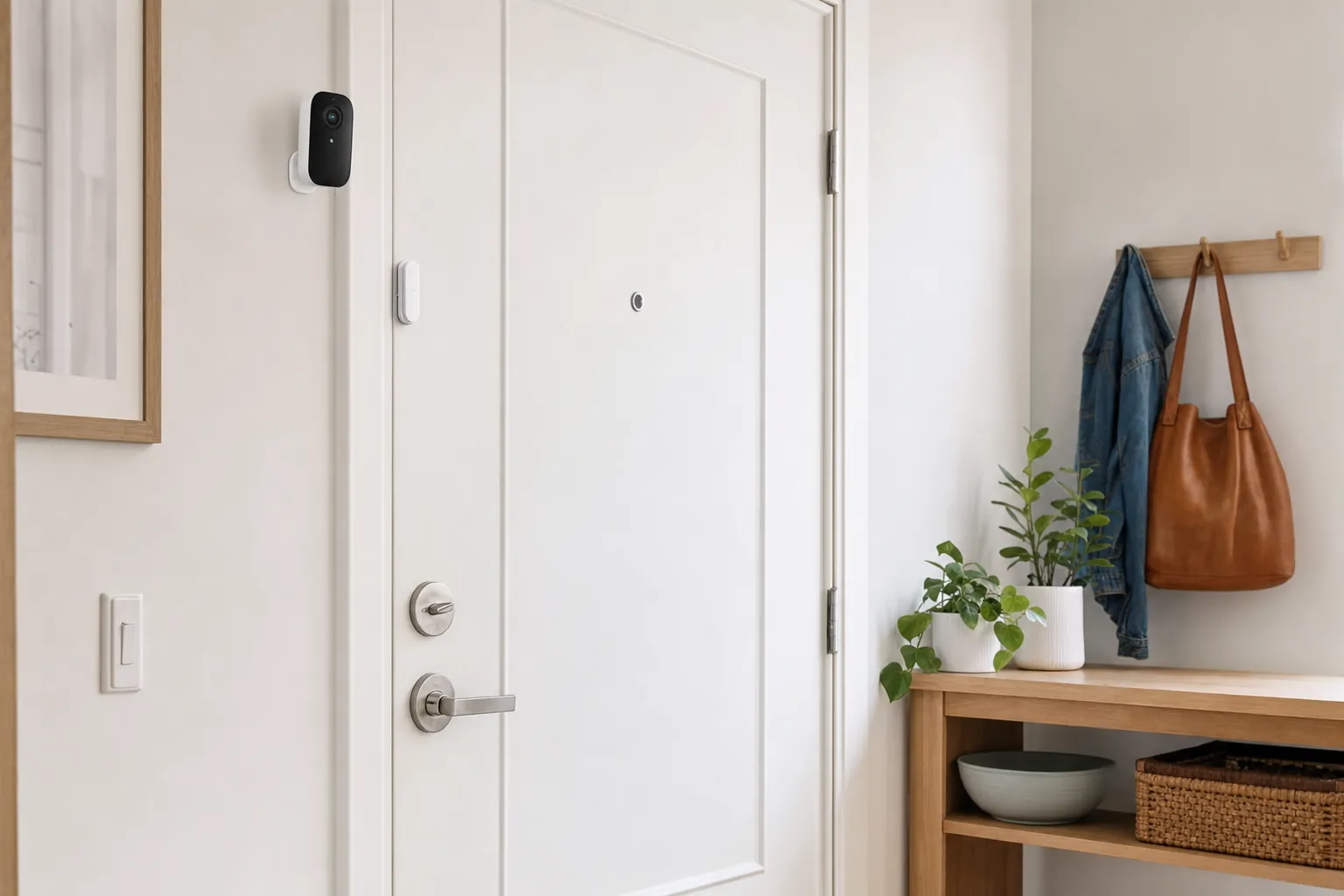
Direct answer: in a small apartment, place the router in an open, central, elevated spot, away from metal, large appliances, dense walls, and the floor. Test signal at the front door, bedroom, desk, and streaming area before buying more equipment. Most Wi-Fi problems in a small home improve more from placement and a clear network setup than from a larger stack of smart-home gadgets.
Small does not always mean easy for Wi-Fi. Concrete, plaster, mirrors, kitchen appliances, and neighbouring networks can make a one-bedroom apartment harder to cover than a larger open house. Smart lights, locks, speakers, and sensors rely on a connection that reaches their actual location, not the spot where you usually sit with your phone.
Put the router where radio signals can leave the room
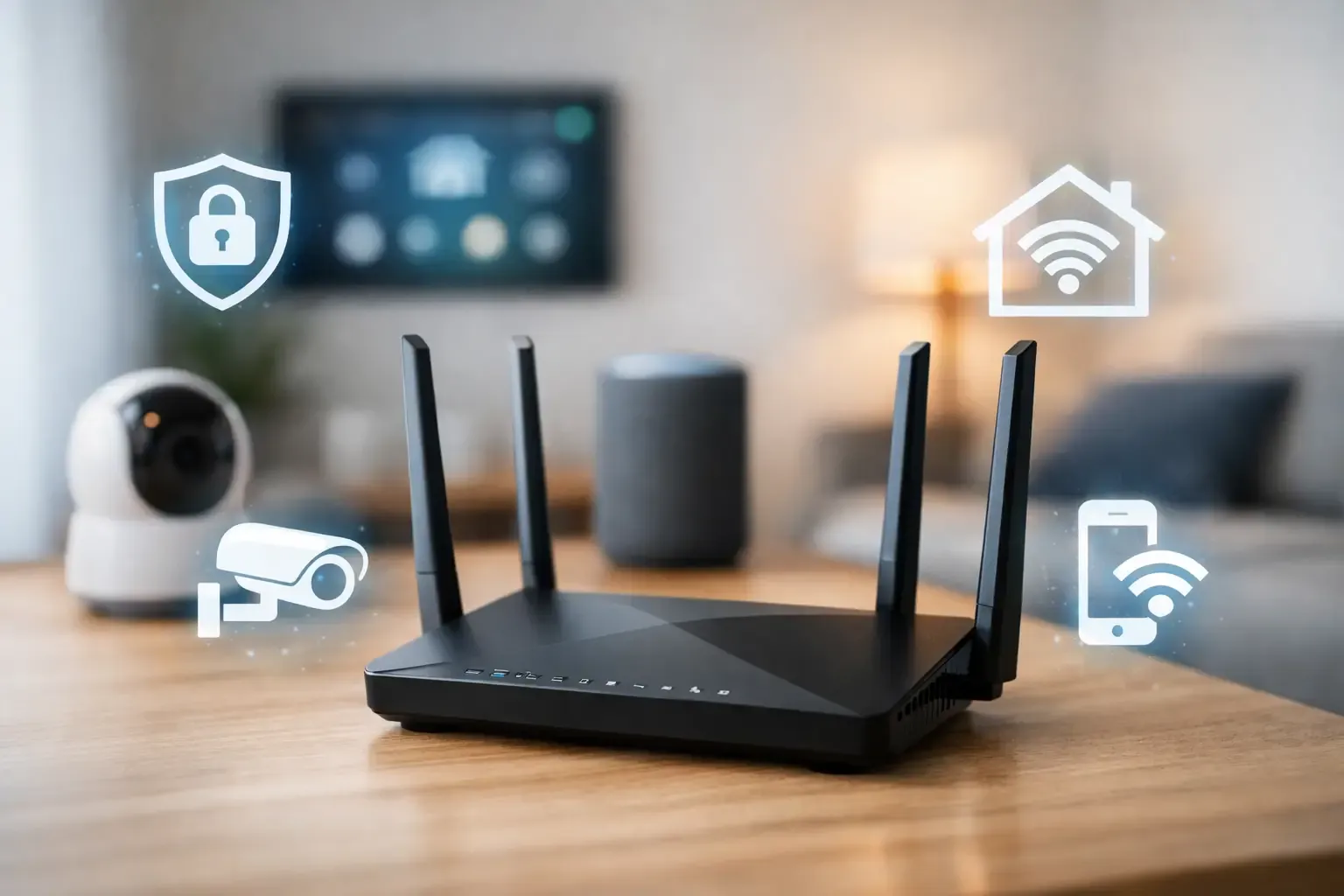
Start with the best location the service connection allows. Put the router on a shelf or table, with space around it, not inside a cabinet or behind a television. Keep it away from a metal filing cabinet, aquarium, microwave, and thick masonry wall when possible. Avoid the floor, a corner, and a window ledge where signal is pushed out of the apartment instead of through it.
If the modem must stay in an awkward location, a longer approved cable, an access point, or a mesh node may be a better answer than accepting a dead zone. Ask the internet provider about equipment rules before moving a cable or changing supplied hardware. The FCC's Wi-Fi troubleshooting guide supports the same sensible first steps: check placement, reduce interference, and confirm the equipment is working before replacing everything.
Test the places where smart devices live
Walk the apartment with your phone and note connection quality at the front door, the farthest bedroom, a balcony or patio, and the laundry or utility area. Those are common places for a video doorbell, lock bridge, leak sensor hub, or smart speaker to struggle. Test at different times of day because neighbouring network activity can change the result.
Then test the actual device after installation. A phone can have a stronger antenna than a small battery sensor. If a product repeatedly disconnects, move the router or hub first, then reduce the distance or obstructions. Do not hide a hub behind a television or inside a steel cabinet simply because it looks tidier.
Use 2.4 GHz and 5 GHz for their strengths
Many smart-home accessories use 2.4 GHz Wi-Fi because it travels farther through walls and uses less power. Phones and laptops may prefer 5 GHz or newer bands for speed at close range. This is normal. The setup problem occurs when a device needs 2.4 GHz but the app or router configuration hides it.
Check the manufacturer's setup instructions before changing network names. Some systems handle both bands under one network name; others are easier to add when 2.4 GHz is available clearly during setup. Do not disable security or create a permanently weak guest network just to pair one device. If the router supports a separate IoT network, it can be a tidy option, but only if you understand how your phone and home-control platform will still reach the devices.
Choose a small apartment layout before buying mesh
A single modern router is often enough for a studio or open one-bedroom. Add a mesh system or wired access point when testing shows a persistent dead zone caused by layout, not merely a poorly placed router. More nodes are not always better in a compact home. Too many close-together radios can create handoff and placement confusion.
For a long railroad-style apartment, place the main router nearer the centre and one additional node toward the weak end if needed. For a dense concrete building, a wired connection between access points is often more stable than expecting a wireless mesh signal to pass through several heavy walls. Pick equipment that can remain in the open and be unplugged and moved at the end of the lease.
Protect the network that runs your home
Change the router's default administrator password, use a strong Wi-Fi password, install firmware updates, and disable remote administration unless you need it. Keep the recovery email and account details in a secure place that is not one roommate's forgotten inbox. The CISA Secure Our World guidance is a straightforward reference for updates, passwords, and multi-factor authentication.
When a device no longer belongs to the household, remove it from its app and reset it before selling or giving it away. This is especially important for hubs, cameras, speakers, and locks that may retain Wi-Fi details or household permissions.
A practical apartment Wi-Fi checklist
- Put the router in the most open, central, elevated location available.
- Test the front door, far bedroom, work desk, and any balcony or utility area.
- Keep hubs and bridges visible and away from metal obstructions.
- Confirm the Wi-Fi band a new smart device needs before setup.
- Use a second node only after placement and testing show a real gap.
- Update firmware and remove access for former roommates or old devices.
How SavvyNests helps
SavvyNests helps you build a small, stable foundation before adding smart devices. Browse our smart-home hub guide and beginner device guide to choose gear that fits the Wi-Fi and space you already have.
Use a seven-day test before expanding
Set up one device or one routine, then live with it for a week. Notice what happens when you leave in a rush, when another person is home, when the Wi-Fi is slow, and when you want to use the room differently. A good smart-home choice fades into the background because it saves a small amount of effort without asking for constant attention. A bad one asks for troubleshooting, creates arguments about access, or makes a basic task harder when the app is unavailable.
Keep a short note of the outcome. Did it solve the original problem? Did it need a subscription, a hub, a new charger, or a work-around you did not expect? Was there an easy manual fallback? This small review protects the budget better than buying a matching device for every room before you know whether the first one is useful.
Keep the setup portable and understandable
Rentals change. Wi-Fi names change, roommates change, and a future apartment may have different window sizes, door hardware, or signal strength. Prefer equipment that can be unplugged, reset, and packed without leaving a permanent change behind. Store manuals, adapters, brackets, spare adhesive, and original hardware together. A labelled box is not glamorous, but it prevents a smart-home upgrade from becoming a move-out scramble.
Make sure the people who live in the home can still use it without your phone. Retain ordinary keys where appropriate, physical controls for lights and shades, and a plain-language note for any shared routine. Do not make safety, heat, or normal access depend on one account holder being available. Simpler systems are usually the ones that remain useful after the novelty wears off.
Protect accounts as carefully as the hardware
A connected device is also an account. Use a unique password for the primary smart-home account, enable multi-factor authentication when it is offered, and update devices through the maker's official app. Review household members and guest access after a move, breakup, or change in cleaners and pet sitters. The Federal Trade Commission's security basics are a useful reminder that updates and unique passwords reduce avoidable risk.
Never buy a device solely because it promises every feature. Check what works without a subscription, what happens during an internet outage, and whether the maker still publishes support information. Technology should give you a clear benefit and a clear fallback, particularly in a home you may leave next year.
Frequently Asked Questions
Where should I put a Wi-Fi router in a small apartment?
Use an open, central, elevated location with space around it. Keep it away from metal, large appliances, cabinets, and the floor.
Do I need mesh Wi-Fi in an apartment?
Usually only if testing shows a persistent dead zone after improving placement. One good router is often enough for a studio or open one-bedroom.
Why will my smart device not join Wi-Fi?
Many accessories need 2.4 GHz Wi-Fi. Check the maker's setup instructions, signal at the device location, and account details before resetting everything.