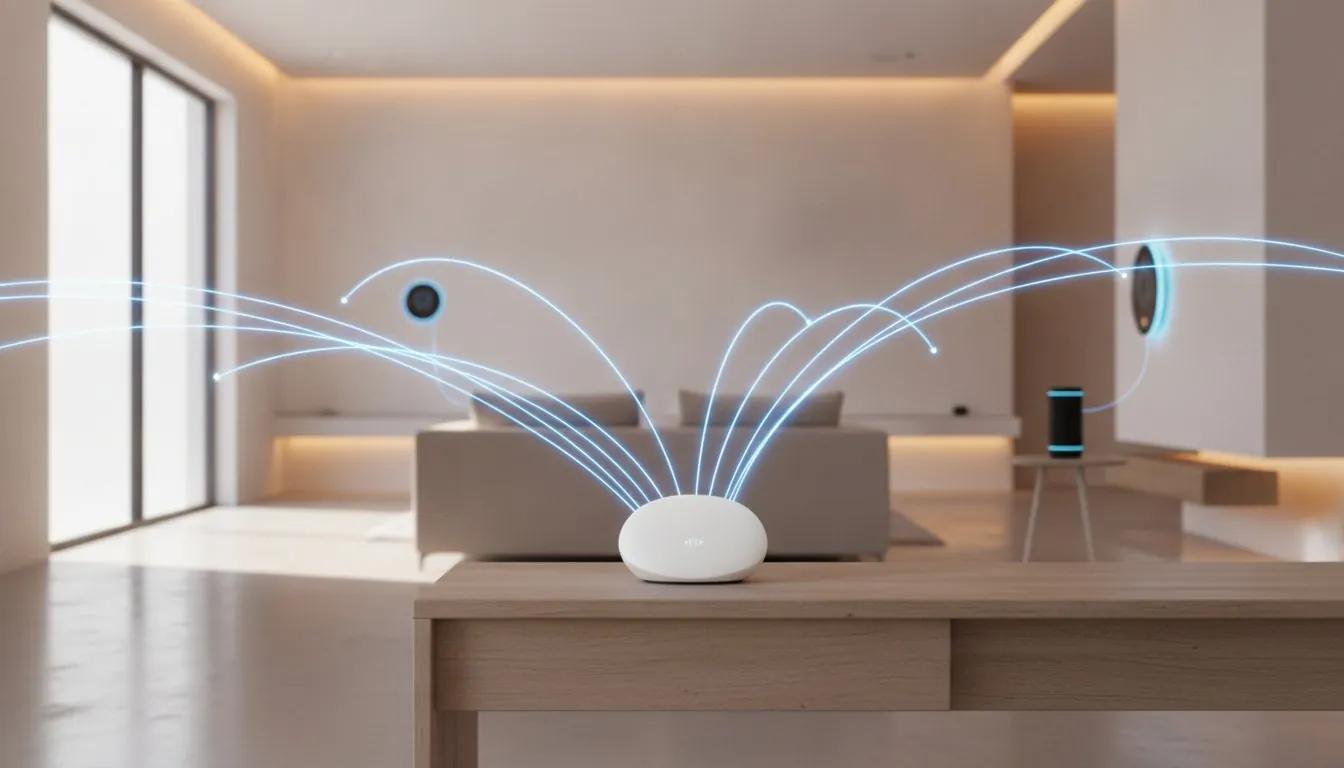
Imagine waking up to your favorite “Good Morning” routine, only to find your bedroom lights dark and your smart speaker blinking a frustrating “Device Unresponsive” error. It’s a common headache that turns a helpful home into a source of stress, especially when security cameras miss important moments or routines simply fail to fire. You might feel like you’re stuck in a loop of unplugging and resetting, but the real issue usually isn’t a broken gadget. More often than not, the culprit is hidden within your network settings. Learning how to improve smart home wifi is the secret to stopping these random drops and reclaiming the convenience you were promised.
We understand how overwhelming it feels to troubleshoot a dozen different brands at once. You shouldn’t need a computer science degree just to keep your front door locked or your thermostat connected. This guide will show you exactly why your gadgets keep going offline and provide a simple, step-by-step path to a rock-solid home network. We’ll explore five common connection killers and help you decide if you need a quick settings tweak or a hardware upgrade like a mesh system. By the end, you’ll have the peace of mind that comes with a truly reliable smart home where every automation works every single time.
Key Takeaways
- Learn to distinguish between “ghosting” devices and total network outages to save time on unnecessary resets.
- Discover why your basic ISP router might be the hidden bottleneck preventing your smart gadgets from staying online.
- Follow our actionable steps on how to improve smart home wifi by identifying and bypassing physical signal blockers in your home.
- Master a simple troubleshooting routine that starts with basic power checks to avoid the overwhelm of complex tech fixes.
- Explore long-term solutions like mesh networks and dedicated hubs that take the heavy lifting off your main Wi-Fi.
Table of Contents
Why Your Smart Home Devices Keep Losing Connection: Common Culprits
It is a common scene: you open your app to dim the lights for a movie, but the icon is greyed out. In the world of a home automation system, we call this “ghosting.” This happens when your device has plenty of power but simply stops communicating with your network. It is frustrating, but it does not always mean your gadget is broken. Understanding how to improve smart home wifi starts with recognizing that most connectivity drops are local glitches rather than total internet outages. If your Netflix is still streaming but your smart bulb is unresponsive, you are facing a local connection drop.
To better understand how these signals move through your space and why they might fail, watch this helpful video:
Most connectivity issues boil down to five main factors. Network congestion happens when too many devices fight for attention. Physical range is a factor when a gadget is too far from the router. Signal interference occurs when walls or other electronics block the path. Outdated firmware can cause software conflicts; finally, power fluctuations can knock a device offline. The good news is that you can fix nearly all of these without spending a fortune on new equipment or calling in a professional.
Is It the Device or the Network?
Before you start digging into complex router settings, you need to isolate the problem. First, look at the physical device itself. Does it have a status light? If the light is completely dark, you are likely dealing with a dead battery or a tripped breaker rather than a Wi-Fi issue. This is a common point of confusion that many people overlook. Next, check other smart gadgets in the same room. If your smart plug is offline but the camera next to it is streaming perfectly, the issue is likely specific to that one piece of hardware. Finally, check the manufacturer’s status page online. Sometimes the “cloud” goes down; in those cases, no amount of troubleshooting how to improve smart home wifi on your end will fix a global server outage.
The “Savvy” First Step: The 30-Second Reboot
If the hardware has power but is not talking to your app, it is time for a “soft reset.” We recommend a 30-second power cycle. Power cycling is the process of fully discharging a device before restarting it. This simple action clears out temporary software glitches or memory leaks that can cause a device to hang or “freeze.” While the device is rebooting, close and restart the management app on your smartphone simultaneously. This ensures that both the hardware and the software start from a clean slate. It is a quick, savvy move that fixes a surprising number of seemingly broken devices in seconds.
Router Limits: Why Your Network Might Be Overwhelmed
Your router acts as the digital traffic controller for your entire house. To keep things organized, it maintains an “Internal Table” that tracks every single connection, from your smartphone to that one smart plug in the basement. When you start adding dozens of devices, this table grows rapidly. Standard routers provided by your internet service provider (ISP) are often built for basic tasks like web browsing and streaming. They aren’t designed to handle the high density of a modern smart home. By 2026, many standard ISP routers still struggle once you hit a limit of 20 to 40 connected devices. The problem isn’t a lack of IP addresses. It’s a lack of processing power. The router’s “brain” simply gets overwhelmed trying to manage hundreds of tiny status updates every second.
If you find that your devices are frequently dropping off, it might be time for an upgrade. A savvy way to start is by looking through our smart home buying guides to find hardware specifically designed for heavy device loads.
Understanding Device Capacity and Congestion
Every single smart sensor, bulb, and switch counts as an active connection. This is where “smart home density” becomes a real issue. You might have lightning-fast fiber internet, but that high-speed connection only matters if your router can distribute it effectively. When the hardware is overwhelmed, you’ll notice specific symptoms that signal your network is at its limit:
- Random disconnections from devices that were previously stable.
- Agonizingly slow response times for simple light switches or routines.
- New devices failing to pair even when they are right next to the router.
Improving your setup is a key part of how to improve smart home wifi because it ensures your local network can handle the “chatter” of your gadgets without crashing.
The 2.4 GHz vs. 5 GHz Frequency Dilemma
Most smart home devices rely on the 2.4 GHz frequency because it travels through walls much better than the faster 5 GHz band. However, this band is incredibly crowded. Many modern routers use a feature called “Band Steering” to try and push devices to the faster 5 GHz band. Because most smart gadgets can’t handle 5 GHz, the router may accidentally kick them offline while trying to optimize the connection. A savvy fix is to disable band steering or create a dedicated 2.4 GHz guest network specifically for your smart home gear. This keeps your essential gadgets on a stable path and is a proven method for how to improve smart home wifi without complicated rewiring.
Physical Interference: How Your Home Layout Blocks Signals
You might have the most powerful router on the market, but Wi-Fi signals are still just radio waves. These waves struggle to pass through solid objects. If your home has “dead zones” where your phone suddenly loses bars, your smart devices will suffer too. Physical barriers are a primary reason why gadgets go offline. Common materials like brick, concrete, and metal mesh act as shields that bounce or absorb signals before they reach your devices. This creates a frustrating environment where a device works one minute and disappears the next.
Distance plays a major role in these connection drops. A smart lock mounted on a thick, solid wood or metal-reinforced front door often struggles because the signal has to fight through dense material at the very edge of your network’s reach. This is why choosing the right hardware for your specific layout matters. Consulting a smart home buying guide helps you identify devices designed with better internal antennas for long-range stability.
Surprising Household Signal Killers
Some obstacles are less obvious than a brick wall. Mirrors are a classic example. The thin layer of metal backing on most mirrors reflects Wi-Fi signals like a wall of aluminum foil. If your router is on one side of a bathroom and your smart speaker is on the other, that mirror could be the culprit. Large aquariums are another issue. Water is highly effective at absorbing radio waves, especially at the 2.4 GHz frequency. Large metal appliances like refrigerators also create “shadows” where the signal cannot reach. Even your microwave or baby monitor can disrupt your connection because they often operate on the same frequency as your smart home gadgets.
Optimizing Router Placement for Coverage
Learning how to improve smart home wifi often comes down to simple physics. The best rule of thumb is to keep your router “central and elevated.” Placing your router in a central room on a high shelf or mounted on a wall allows the signal to radiate outward and downward with fewer obstructions. Many people hide their routers in cabinets or tech closets to keep things tidy, but this is a major connectivity mistake. Wood and drywall might seem thin, but every layer weakens the signal.
If you are still struggling to find the right spot, try using a Wi-Fi analyzer app on your smartphone. These tools provide a visual map of signal strength in every room. It helps you see exactly where the signal drops off so you can adjust your placement. Mastering these small environmental tweaks is a savvy way to understand how to improve smart home wifi without needing to rewire your entire house or buy expensive boosters.
A Step-by-Step Troubleshooting Guide for Offline Devices
When a device disappears from your dashboard, it is easy to feel defeated. However, most connectivity issues follow a predictable pattern. Instead of jumping straight to complex network changes, follow this systematic checklist to bring your gadgets back online. This logical approach is one of the most effective ways to understand how to improve smart home wifi without wasting hours on trial and error. Start with the simplest physical checks before moving toward software solutions.
- Step 1: Check power and batteries. It sounds simple, but dead batteries are the leading cause of sensor failure. Even hardwired devices can lose power if a smart plug is bumped or a breaker trips. Replace batteries with high-quality alkaline or lithium cells to ensure consistent voltage.
- Step 2: Perform a “Soft Reset.” If the device has power but won’t respond, use the manufacturer’s app to trigger a restart. This is different from the physical power cycle we discussed earlier; it forces the device’s internal software to reinitialize its connection handshake.
- Step 3: Update firmware. Manufacturers regularly release patches to fix known connectivity bugs. If your device is “ghosting,” a pending update might be the silent cure.
- Step 4: Verify ecosystem sync. Sometimes the device is connected to its own app but has lost its link to Alexa or Google Home. Try toggling the “Skill” or “Integration” off and back on to refresh the sync.
- Step 5: The “Nuclear Option.” If all else fails, perform a factory reset. This wipes the device’s memory and allows you to pair it as if it were brand new.
Firmware: The Silent Fix
Checking for firmware updates should be a monthly habit for any savvy homeowner. You can usually find these in the “Settings” or “About” section of the manufacturer’s app. If you use a central hub, ensure it is also running the latest software version to maintain compatibility across different brands. For specific reset codes or button combinations for your particular brand, refer to our comprehensive smart home troubleshooting guide to avoid damaging your hardware.
When to Re-Pair vs. When to Replace
Sometimes, the hardware itself is the problem. If a device refuses to enter pairing mode even after a factory reset, you might be looking at an internal Wi-Fi chip burnout. This is more common in cheaper, generic gadgets that lack proper heat management. Before you toss a non-responsive device, check your warranty status; many reputable brands offer 12 to 24 months of coverage. Always remember to delete the unresponsive device from your hub or app before attempting to re-add it. This prevents “zombie” entries from cluttering your network and is a vital step in learning how to improve smart home wifi stability.
Long-Term Fixes: Building a More Reliable Smart Home
If you have already tried power cycling and repositioning your router, you might be facing a hardware ceiling. A truly reliable smart home requires a network architecture that can scale as you add more gadgets. By 2026, the most significant advancement in this area is the widespread adoption of Matter and Thread. These standards are built specifically for reliability and speed; they allow devices from different brands to communicate locally without relying on the cloud for every tiny command. This shift is a major part of how to improve smart home wifi performance because it reduces the constant digital chatter that typically slows down a standard router.
For those living in smaller spaces or apartments, choosing the right gear is just as important. We recommend checking out our guide on smart home devices for renters to find portable mesh options that don’t require permanent installation or complex wiring.
Moving Beyond Wi-Fi: Zigbee, Z-Wave, and Thread
One of the best ways to keep your network snappy is to move low-bandwidth devices like light switches, sensors, and locks off your Wi-Fi entirely. Protocols like Zigbee and Z-Wave use a mesh-based approach where each powered device acts as a repeater. This allows your gadgets to talk to each other instead of fighting for a direct line to the router. Because these signals operate on different frequencies or use more efficient routing, they use significantly less power and offer much better range than standard Wi-Fi. If you are an Apple user, consulting a best smart home hub for apple homekit guide will help you find a central controller that manages these protocols effortlessly.
Upgrading to a Mesh Network
If you have a large home with multiple floors, a single router is rarely enough. You might be tempted by cheap Wi-Fi extenders, but these often create more problems by halving your bandwidth and creating separate network names. A mesh system is a much savvier choice. A mesh network uses multiple access points to create a single, seamless Wi-Fi blanket. Unlike extenders, mesh nodes communicate with each other to intelligently route traffic to the closest point. Modern mesh systems can handle over 100 devices simultaneously without breaking a sweat. Implementing this technology is the ultimate answer to how to improve smart home wifi for a house that is truly future-proof. You’ll gain the peace of mind that comes from knowing your security cameras and smart locks will stay connected, no matter where they are located.
Reclaim Your Seamless Smart Home Experience
A stable network is the heartbeat of any modern home upgrade. By moving through our troubleshooting steps and identifying signal-blocking materials, you’ve already taken the most important steps toward a frustration-free setup. Remember that while a quick reboot often clears a glitch, a growing collection of gadgets eventually needs a stronger foundation than a standard ISP router can provide. Learning how to improve smart home wifi is about more than just fixing a single light bulb; it is about ensuring your security cameras, locks, and routines work reliably every single day.
Our curated selections are expert-tested for environments with 50 or more active devices. These recommendations focus on easy setup for beginners and are fully verified for 2026 compatibility to keep your home current. You’re now equipped with the savvy knowledge to master your environment. With the right hardware and a clear understanding of your home’s layout, you can finally enjoy the true convenience of a smart home that simply works.
Frequently Asked Questions
Why does my smart light bulb keep flickering or going offline?
Smart bulbs usually go offline because of weak signal strength or physical interference from walls and furniture. If the bulb is flickering, it might be installed on a traditional dimmer switch. These switches can starve the smart chip of the consistent power it needs to stay connected to your network. To fix this, ensure your bulb is on a standard on-off circuit and has a clear path to the nearest access point.
Do I need a new router if my smart home devices keep disconnecting?
You don’t always need new hardware, but a basic ISP-provided router often hits its limit once you add more than 20 gadgets. If you’ve already tried repositioning your router and clearing the cache without success, upgrading is a savvy choice. Modern routers designed for high device density are a proven way of how to improve smart home wifi reliability without constant manual resets.
Can a smart home hub prevent devices from losing connection?
Yes, a dedicated hub using Zigbee or Z-Wave protocols significantly improves stability by moving traffic off your main Wi-Fi. These hubs create their own mesh network where devices talk to each other instead of crowding your router. This is a highly effective strategy for anyone looking at how to improve smart home wifi because it frees up bandwidth for your phones and laptops.
How many smart devices can a standard Wi-Fi router handle in 2026?
By 2026, most standard routers provided by internet service providers still struggle when they reach 20 to 40 connected devices. While they might technically allow more connections, the internal processor often becomes overwhelmed by the constant “chatter” of smart sensors. If your home has dozens of bulbs and plugs, you’ll likely see better performance from a dedicated mesh system or a high-end router.
Will a mesh Wi-Fi system fix my smart home connectivity issues?
A mesh system is the gold standard for fixing “dead zones” in larger homes or houses with thick building materials. Instead of relying on one central router, mesh nodes create a seamless blanket of coverage throughout your entire living space. This ensures that a smart lock on the front door or a camera in the backyard stays connected with a strong, consistent signal.
Why do my smart devices disconnect when I use the microwave?
Microwaves and many smart devices both operate on the 2.4GHz frequency, which leads to heavy signal interference. When the microwave is running, it can create enough “noise” to temporarily drown out the Wi-Fi signal for nearby gadgets. Moving your router away from the kitchen or using mesh nodes to provide a stronger local signal can help prevent these annoying drops.
What is the best Wi-Fi band for smart home devices, 2.4GHz or 5GHz?
The 2.4GHz band is almost always better for smart home gadgets because it has a longer range and penetrates walls more effectively. While the 5GHz band is faster, its signal drops off quickly and struggles to pass through solid objects like brick or wood. Most smart bulbs and sensors are built specifically for 2.4GHz to ensure they stay connected across your whole home.
How do I know if my smart device has a weak signal?
Delayed response times in your management app are the most common sign of a struggling signal. You can also use a Wi-Fi analyzer app to check the signal strength at the device’s exact location. A reading lower than -70 dBm is a clear indicator that the signal is too weak for a reliable connection, suggesting you may need to move your router or add a mesh node.
Article by
Michael J. Mahon
I research and compare smart-home products for homeowners and renters, focusing on practical setup, compatibility, affordability, and everyday usefulness.